You sell candles, prints or coffee on Squarespace, and you've decided to move the shop somewhere else. The first job is getting your products out. Squarespace gives you a spreadsheet for that, and it's a decent one, but it isn't your whole store. I read Squarespace's export pages this morning, held the product file up against the WooCommerce importer column by column, and converted one product by hand so you can see exactly where people trip.
How do I export products from Squarespace?
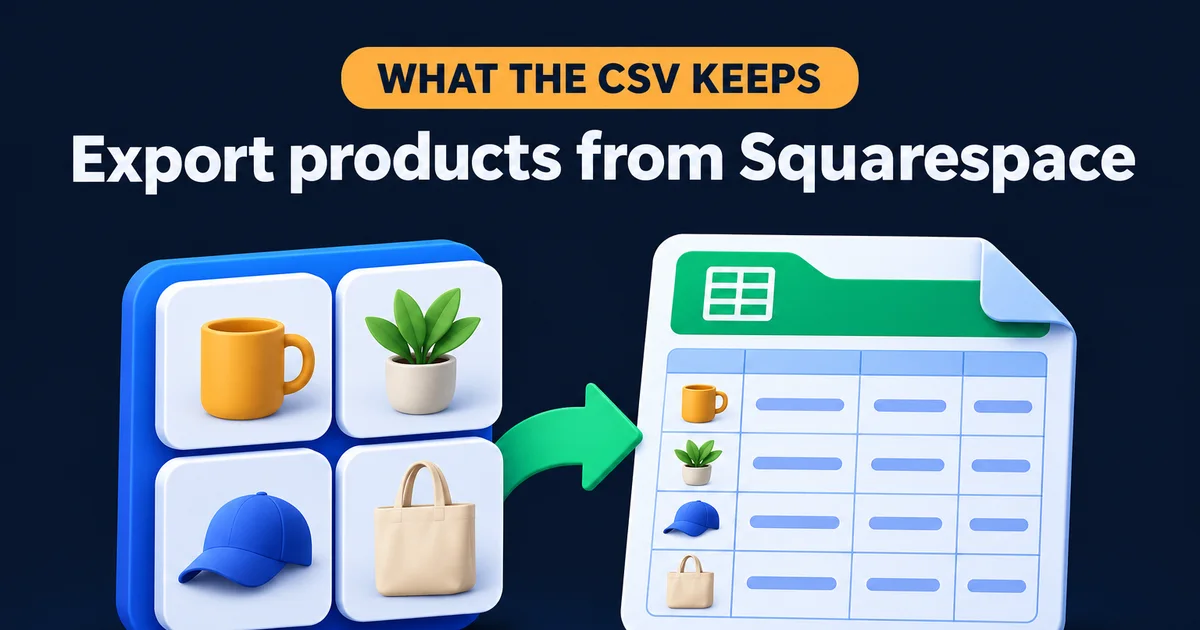
Open the Products panel, click Products, then Export all. Squarespace downloads a .csv file you can open in Excel or Google Sheets. It holds physical and service products only, up to 10,000 of them, and every variant counts towards that limit. Digital products can't be exported this way.
- Log in and open the Products & Services panel.
- Click Products.
- Click Export all. If you only need a few, tick the box beside each product's image and click Export instead.
- Open the file in a spreadsheet and save a copy you never touch. Work on a second copy.
- Check the row count. A shirt in four sizes is four rows, so the file will look longer than your product list.
Older guides still send you through a Settings menu. Squarespace's current help page goes through the Products panel, so if a screenshot doesn't match your screen, trust the screen. And the export is a snapshot. Change a price in Squarespace tomorrow and the file won't know.
What each column in the product file holds
The export uses the same layout as Squarespace's import template, plus one extra column for pages that only matters on the way in. The table lists every column and what I do with it when the products are going into a WooCommerce store.
| Column | What it holds | What to do with it on the new store |
|---|---|---|
| Product ID, Variant ID | Squarespace's own numbers | Drop them. The new store makes its own |
| Product Type | Physical or Service | Becomes simple or variable in WooCommerce, depending on whether it has options |
| Product Page | Which store page the product sits on | Use it to plan categories, then drop it |
| Product URL | The last part of the product's address | Keep it. It's half of your redirect list |
| Title, Description | Name and main text | Map to Name and Description |
| SKU | Your stock code, up to 60 characters | Keep it. Every variant needs its own |
| Option Name 1 to 3, Option Value 1 to 3 | Size, colour and so on, three options at most | Map to Attribute 1 name and Attribute 1 value(s) |
| Price, Sale Price, On Sale | Regular price, and a sale price used only when On Sale says Yes | Copy Sale Price only on rows where On Sale is Yes, or old sales come back to life |
| Stock | A number or the word unlimited | Unlimited becomes a blank Stock cell, which switches stock tracking off |
| Categories, Tags | Categories as slugs with a leading slash, tags separated by commas | Rewrite categories as names, with > for a sub-category |
| Weight, Length, Width, Height | Numbers for shipping | Numbers only on the other side too. The unit lives in the column name |
| Visible | Yes or No | Becomes Published, 1 or 0 |
| Hosted Image URLs | Links to images on the web | Check it. Your featured and variant images don't come with the export |
What the file leaves behind
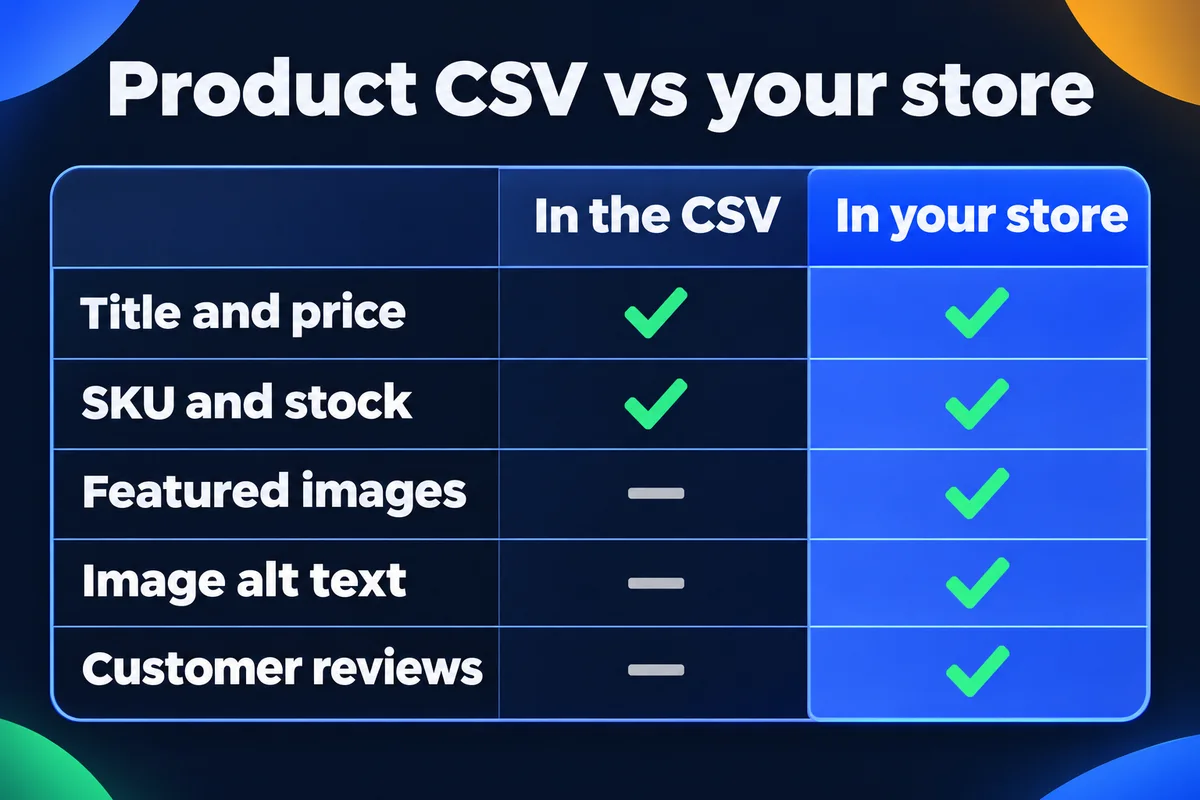
This is the part nobody mentions until the old site is cancelled. Squarespace's own export page lists what stays behind, and its reviews page says reviews can't be exported in any format.
In the product file
- Titles, descriptions and product addresses
- Prices, sale prices and stock
- SKUs and up to three options per product
- Categories, tags, weights and sizes
- Whether each product is visible
Not in the product file
- Featured images and variant images
- Image alt text
- The additional information section
- Customer reviews
- Digital products
- Any product option past the third
There's no bulk download for photos either. Images come out of the asset library one at a time, which is a fun afternoon if you have 300 products. If you still have the originals on your laptop or with your photographer, go there first. They'll be bigger and sharper than anything you pull back off the site anyway.
One candle in two sizes, before and after
Variants are where most imports break, because the two systems lay them out differently. Squarespace writes one row per variant and puts the product's name, text and category on the first row only. WooCommerce wants a parent row for the product and then one row per variation that points back at it.
Here's a made-up cedar candle in 8 oz and 12 oz, as the Squarespace file lays it out (only the columns that matter here):
| Title | Option Name 1 | Option Value 1 | SKU | Price |
|---|---|---|---|---|
| Cedar candle | Size | 8 oz | CED-08 | 24.00 |
| 12 oz | CED-12 | 32.00 |
And here's the same candle the way the WooCommerce importer wants it:
| Type | SKU | Name | Parent | Attribute 1 value(s) | Regular price |
|---|---|---|---|---|---|
| variable | CED | Cedar candle | 8 oz, 12 oz | ||
| variation | CED-08 | CED | 8 oz | 24.00 | |
| variation | CED-12 | CED | 12 oz | 32.00 |
Two rows became three. The new parent row needs a SKU of its own, which Squarespace never had, and each variation finds its family through the Parent column. Get that one column wrong and you import a shop full of orphaned 12 oz candles with no name. The parent also lists every size in one cell, separated by commas, and anything with a comma inside it goes in double quotes.
Shopify's product file is laid out differently again, so if you're going there, don't reuse a WooCommerce sheet. Shopify's own migration guide offers its import tools and apps for this step.
Orders and customers are separate downloads
The product file has no orders and no customers in it. Each one is its own export, from a different corner of the dashboard, and each leaves something out.
Products
- Where
- Products & Services, Products, Export all
- Holds
- The columns in the table above
- Leaves out
- Images, alt text, reviews, additional information, digital products
Orders
- Where
- Products & Services, Orders, Export data, Download CSV
- Holds
- Order, billing, shipping, payment, tax, discount and line items, plus checkout form answers
- Leaves out
- Hidden products and products on disabled store pages
Customers
- Where
- Lists & Segments, Customers, export icon, Confirm
- Holds
- Name, email, order count, total spent, last order, last addresses and phone, tags
- Leaves out
- Your notes on customers and abandoned checkouts
For orders, pick All time in the date menu and tick every status, or you'll get last month and think that's everything. Customer subscriptions can't be moved through these files at all. If you sell subscriptions, plan that switch with your customers before anything else, because nobody enjoys being asked for their card again by surprise.
The order I'd do it in
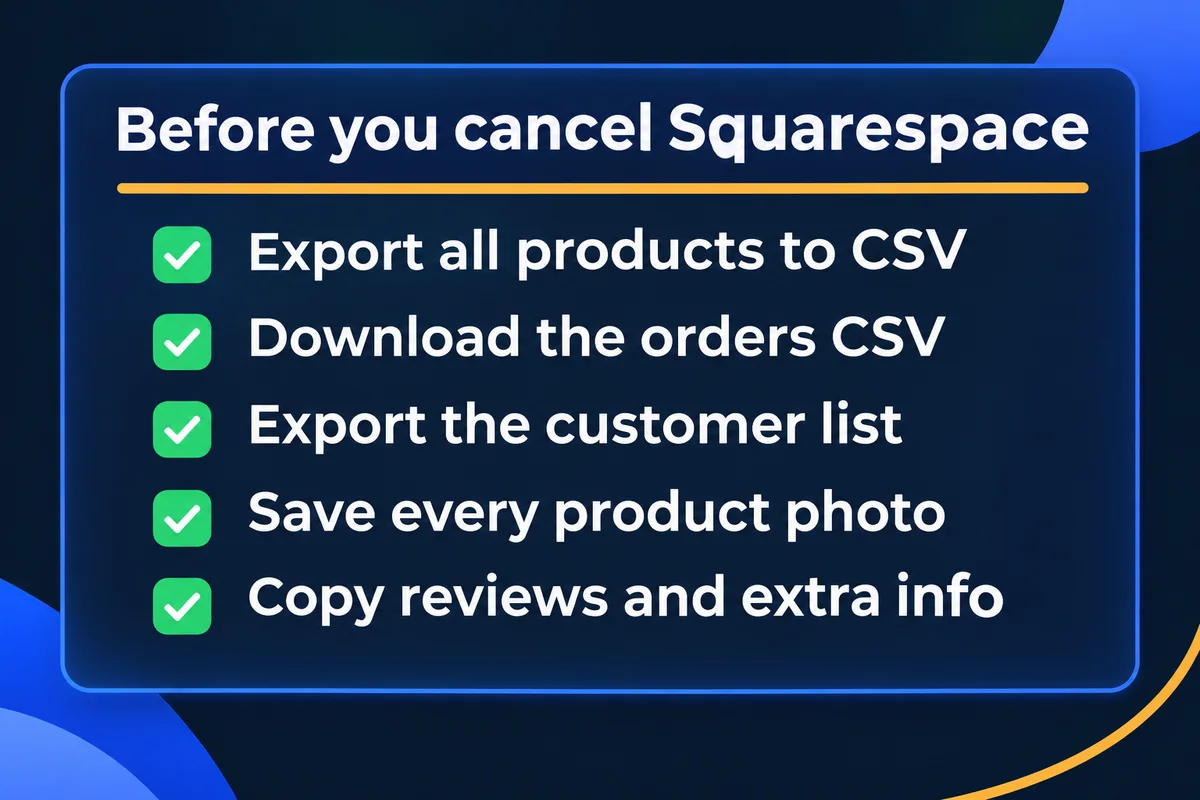
Moving a shop is less about the files and more about not losing the things the files don't carry. This is the order I follow when I move a store for a client:
- Export products, orders and customers on the same day, and keep untouched copies of all three.
- Collect the photos, the alt text, the additional information and the reviews by hand. Screenshots of the reviews are better than nothing.
- Copy every Product URL into a sheet next to its new address. My guide on leaving Squarespace explains the site export and how to turn that list into redirects.
- Build the new store and import products first, then customers, then old orders. Shopify's guide asks for that same order, so orders can link to products and people that already exist. It also warns that importing old orders sends a new-order email for each one to anyone set up to receive them, so switch those notifications off first.
- Place a test order, check a variant, check stock, then point the domain. If you'd rather hand the whole job over, this is what I do on e-commerce websites, and the domain side is covered in my notes on website migration.
- Only then cancel Squarespace. Not a day before.
A store is part of my Enterprise Website plan at $2,999 CAD, one-time, and the full list is on the pricing page.
Short answers on Squarespace product exports
Does the Squarespace product export include images?+
Not the ones you care about. Squarespace says featured images, variant images and image alt text don't come with the product file, and there's no bulk image download. Save the photos from your own originals or from the asset library before you cancel.
Can I export digital products from Squarespace?+
No. The product export covers physical and service products only. Keep your own copies of the downloadable files and recreate those products by hand in the new store.
How many products can I export at once?+
Up to 10,000, and each variant counts as one. A catalogue of 2,000 shirts in five sizes is already at the limit. Anything past it won't appear in the file.
Can I move my product reviews to the new store?+
Not with a file. Squarespace's reviews page says reviews can't be exported in any format. Screenshot them or copy the text by hand before you leave, and ask happy customers to review you again on the new store.
Will the product export keep my store in sync?+
No. It's a one-time snapshot. Export again on the day you switch over, so prices and stock in the new store match what you were actually selling that morning.
Sources, read on 8 November 2026: Squarespace, Export products to a .csv; Squarespace, Importing products from a .csv; Squarespace, Export Commerce orders; Squarespace, Managing customers; Squarespace, Collect and display product customer reviews; WooCommerce, Product CSV import schema; Shopify, Migrate to Shopify.
Moving your shop off Squarespace?
Send me your store address and where you want it to go. I'll tell you what the export will carry and what we'll need to move by hand.
Get My Free Quote
I build and move online stores for small businesses around the GTA, and I always check what the export leaves behind before anyone presses cancel. Read my full bio · Get in touch