
A website backup is proven only after you've restored it somewhere and clicked around the result. The "backup completed" email from your host proves a file was written on schedule. It doesn't prove the file holds your database, that it opens, or that anyone on your side knows how to put it back. Test it once, on a copy, before the bad day.
Ask a business owner whether their site is backed up and the answer is almost always yes. Ask where the copies are, how many days back they go, and what a restore costs, and the room gets quiet. That's not a character flaw. The backup was a line in a hosting checkout years ago, ticked or pre-ticked, and nobody has looked at it since. I covered that checkout in the hidden fees in a hosting cart; this article is about the day you actually need the thing you paid for.
Does your web host back up your website?
Most hosts keep some copies, but what's in them, how far back they go and who can restore them change from plan to plan. Many keep those copies inside the same account as the site. Read the backup section of your plan, then find the copies in your hosting panel yourself. If you can't find them, plan as if there are none.
Part of the confusion is that a website isn't one thing. It's several parts that live in different places, and a host's website backup catches only the ones sitting in the hosting account. Before you test anything, it helps to know which part is where:
| Part | What it is | Where it lives | In the host's backup? |
|---|---|---|---|
| Site files | Pages, theme, code, the logo | Your hosting account | Usually |
| Database | On WordPress: posts, pages, settings, users, orders | A database server at the host | Usually, but check the file list |
| Uploads | Every photo and PDF you added | A folder in the hosting account | Usually, and it's the biggest part |
| Mailboxes like info@ on your domain | The host's mail server, or Google or Microsoft | Depends on the tool and the provider | |
| DNS records | What points your domain at the site and the email | Your registrar or DNS provider | No |
| The domain | Your name, rented year by year | Your registrar | No, it's renewed, not backed up |
A hand-coded site often has no database for its pages at all, which makes its backup simpler: a folder of files that either opens in a browser or doesn't. A WordPress site needs both halves, the files and the database, and they have to come from the same day. A backup with last Tuesday's files and no database restores into an installation screen asking you to set up a new site, which is a special kind of Monday.
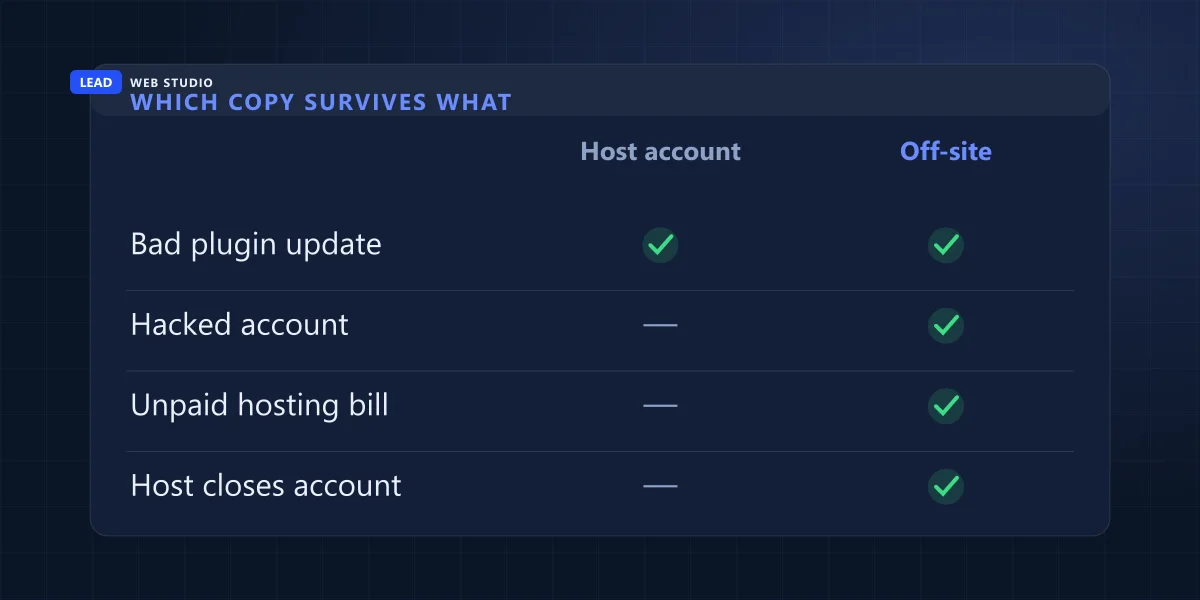
The copy that saves you in the worst cases is the one outside the account. If someone gets into your hosting panel, they can delete the backups sitting next to the site. If a card expires and the hosting bill goes unpaid, the account can be suspended with the backups inside it. The Canadian Centre for Cyber Security makes the same point in plainer terms: it recommends keeping a backup stored offline. For a small business that means one copy you've downloaded, in storage under your own name. The rest of the security routine around it is in what actually protects a small business website.
How do you test a website backup without touching the live site?
Restore the backup somewhere separate, never over the live site: a staging copy if your host offers one, a spare subdomain, or a second cheap hosting account. Then open that copy and click through it as a customer and as the admin. If you can't get it running within an hour or so, that's your answer, and it's worth knowing today.
I'd do it as a drill, written down, so the next person can repeat it. Print this or copy it into a note:
Restore drill
A rough time budget per step. Your first drill will run longer; the second one won't.
- Pick a backup at least a week old, not last night's. Last night's proves the job runs; an older one proves the copies are kept.5 min
- Download it to your own computer before anything else. Write down its size. You now also have one off-site copy.10 min
- Restore it to the staging copy or a subdomain that is hidden from Google, with a password on it if your host allows.20 min
- On the copy, switch off outgoing email and live payments if the site has them, so it can't send a customer a duplicate receipt.5 min
- Run the checks in the next section and mark each one pass or fail.15 min
- Write down what failed and who will fix it, then delete the test copy. It holds customer data.5 min
What to click on the restored copy
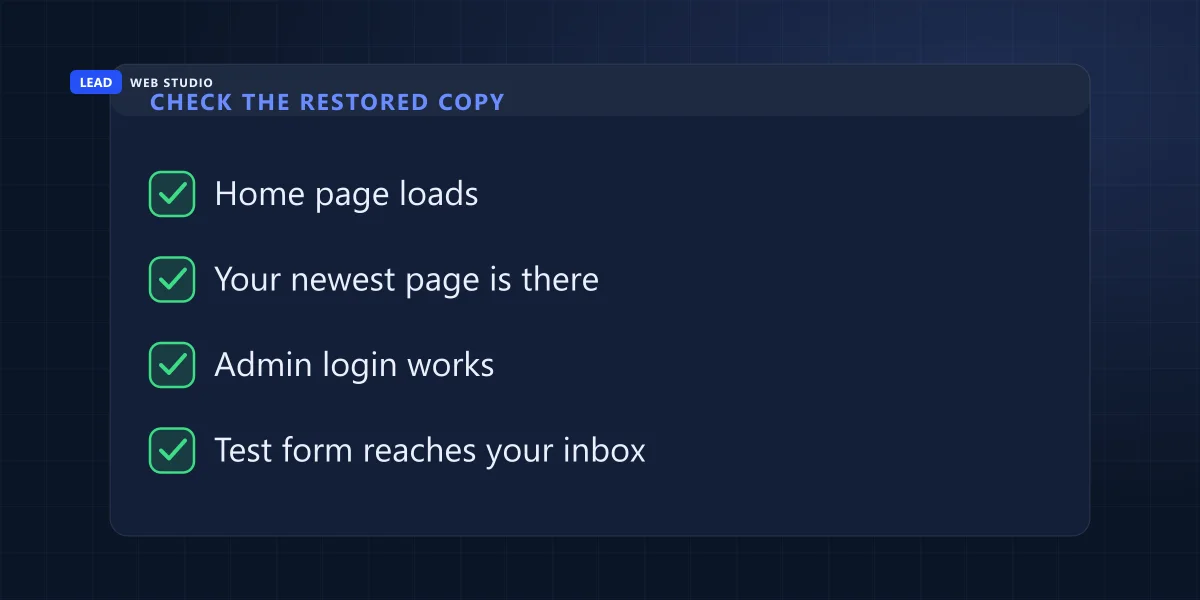
Each check below catches a different way a backup goes wrong without telling anyone. A copy that passes all six is a backup. A copy that fails one is a useful discovery, made on a quiet Thursday instead of during an outage.
- The home page and three inner pages load, with images
- Missing photos usually mean the uploads folder was left out, often because it was too big for the job.
- Your newest page or post is there
- If it isn't, the backup is older than the date on the file says, or the job quietly stopped at some point.
- You can log in to the admin
- A failed login on a WordPress copy points at the database: missing, half-written or from another day.
- The contact form submits without an error
- The form settings and any saved entries live in the database or a config file. Both have to come back.
- A product page shows its price, and checkout opens
- Only for shops. Stop before paying. A blank checkout often means a payment setting lived outside the backup.
- The size is close to last time
- A backup that shrank by half while you deleted nothing has left something out. Find out what before you trust it.
What does a website backup usually leave out?
Mostly the things that don't live in the hosting account: your domain, your DNS records, often your email, and everything that happened after the backup ran. Orders and enquiries that arrived between the backup and a restore over the live site disappear from the site. Keep a separate copy or note of each of these, outside the backup.
- DNS records. They sit at your registrar, and a hosting backup never touches them. Once a year, copy the list into a document. The records worth copying are the same ones I list in moving a domain without the site or email going down.
- Email. If your mailboxes are on Google Workspace or Microsoft 365, they aren't on the host at all, and the host's backup has nothing to do with them. If they are on the host, open the backup's file list and look for them before you assume.
- The domain itself. It can't be backed up, only renewed. Auto-renew with a card that won't expire before the renewal date is the whole protection.
- Anything newer than the backup. Before you restore over a live site, export the orders, bookings and form entries saved since the backup date. Enquiries that were also emailed to you are safe in your inbox.
- The logins. A perfect backup in an account only your former designer can open isn't yours yet. Who holds which login is covered in who actually owns your website.
"Test your backups to make sure they work."
Canadian Centre for Cyber Security, Tips for backing up your information (ITSAP.40.002)The same guidance suggests a full backup before any major system upgrade. For a website that means before a redesign, a new theme or a big plugin update, which is also exactly when an update most likely goes sideways.
How often should you test a website backup?
Once a year on a quiet brochure site, every three months on a site that sells online or changes every week, and every time something big changes: a new host, a redesign, a new backup tool, or a person leaving who held the admin login. The drill takes about an hour, so finding the hour is the hard part.
| What just happened | Test the backup? | Why |
|---|---|---|
| Moving to a new host | Yes, before you cancel the old plan | The old host's backups usually close with the old account |
| A redesign or a new theme | Yes, in the week after launch | New folders and plugins can sit outside what the old job copied |
| A new backup plugin or tool | Yes, the same week | A copy you can't open with the new tool is a file, not a backup |
| Your designer or agency leaves | Yes, before access is handed over | You want proof you can restore without them |
| An ordinary month, nothing changed | No | The yearly or quarterly drill covers it |
A host move deserves the most care of the four, because for a few days the site exists in two places and one of them is about to disappear. The order I follow for that is on the website migration page.
What if the restore test fails?
Good, you found it on a calm day. Don't delete anything, try an older copy, and find out what the backup job actually covers. Then make one copy you've proved, and keep it off the server, before you change anything else on the site.
- Leave the existing backups alone. A broken set may still hold the one folder you need.
- Try a copy from a week earlier, then a month earlier. The first one that works tells you roughly when things went wrong.
- Open the backup's file list and look for the database and the uploads folder by name. Missing ones are the usual cause.
- Ask your host's support two questions in writing: which folders and databases the job includes, and what a restore costs.
- Make a fresh full copy, download it, restore that one to the test location, and run the six checks again.
If the site is down right now and this isn't a drill, start with what to check when your website is down first. A restore is often the last step, not the first.
If you'd rather not run drills yourself, my Website Support plan takes a website backup every day and covers emergency recovery from a backup when you ask, for $100 CAD a month, month to month. The full list is on the website maintenance and support page.
Backup questions owners ask me
Is a backup plugin enough for a WordPress site?+
Only if it sends copies outside your hosting account, to cloud storage in your own name, and only once you've restored one of those copies somewhere. A plugin that keeps its archives in a folder on the same server protects you from a bad update and from very little else.
Where should I keep my own copy of my website?+
Somewhere the hosting login can't reach: a cloud drive or storage account in your business's name, and ideally one copy on a drive in your office that isn't plugged in all the time. Write down where it is and who can open it.
Does restoring a backup delete new orders and form entries?+
Anything saved in the website's database after the backup ran is gone once you restore over the live site. That includes orders, bookings and form entries stored on the site. Export them first. Enquiries that were also emailed to you are still in your inbox.
How big should my website backup file be?+
There's no right number. What matters is the change: write down the size each time you test, and treat a backup that suddenly shrinks by half, with no pages deleted, as a backup that left something out until you've proved otherwise.
Can I test a backup if my site is on Wix or Squarespace?+
Not in the same way. Wix keeps a site history you can roll back inside your account, but it doesn't let you download the whole site. Squarespace can export some content for WordPress, not the design. On both, keep your own copies of text and photos.
Source, read on 23 October 2026: Canadian Centre for Cyber Security, Tips for backing up your information (ITSAP.40.002), for testing backups, keeping one offline and a full backup before major upgrades. The plan details are from this site's support page.
Not sure where your backups are?
Send me your website address and tell me who hosts it. I'll tell you what to look for in your panel, and what the Website Support plan would cover.
Get My Free Quote
I build and look after websites for service businesses in the GTA, and the daily backups, updates and repairs on the sites I support are part of my week. Read my full bio · Get in touch