
The right website image size isn't a magic number from a cheat sheet. Measure how wide the image actually shows on the page, double it so it stays sharp on modern screens, and that's your width. Then export it in two or three formats and keep whichever file is smallest. Everything else is fine-tuning.
I say this because every week someone sends me a site where a 4,000 pixel phone photo sits in a box 340 pixels wide. That's shipping a sofa to deliver a cushion. The page looks fine on office Wi-Fi, then crawls on a phone in a parking lot, which is exactly where your customer is standing when they look you up.
The guides online give you fixed numbers: 1920 for a hero, 1200 for a blog photo, under 200 KB, under 500 KB, under 1 MB. They disagree with each other because the right number depends on your layout. The sum below works out the number for your own pages, and further down are the results of my test on 84 real photos this morning.
How wide should an image be?
As wide as the space it fills on screen, in CSS pixels, times the screen's density. Most laptops and phones sold now draw two or three real pixels for every CSS pixel, so a photo in a 740 pixel column needs a file about 1,480 pixels wide to look crisp. Wider than that is weight nobody sees.
You find the slot width in a minute: open the page in Chrome, right-click the image, choose Inspect, and hover over the highlighted image tag. Chrome shows the size it's drawn at, for example 740 × 389. Here's that sum for four places on a page, using this very site as the example:
- The column you're reading now
- 740 px × 2 = 1,480 px
- The article column on this site is 740 pixels wide on a laptop. A photo inside it wants a file around 1,480 pixels wide.
- One card in a row of three
- about 360 px × 2 = 720 px
- The article cards on my blog page are about 360 pixels wide, so their files are 768 pixels square. A 4,000 pixel photo here is pure waste.
- A phone, full width
- 342 px × 3 = 1,026 px
- A 390 pixel phone screen minus the side padding leaves 342 pixels. Many phones draw three real pixels per CSS pixel, so about 1,000 pixels is plenty.
- A full-width hero banner
- 1,440 px × 2 = 2,880 px
- The sum gets silly on wide screens. For a photo I cap it near 2,000 pixels and give phones their own smaller copy, covered further down.
That's why a single "best size" can't exist. The same photo needs 720 pixels in a card and 1,480 in a column, on the same site, on the same day.
What happened when I re-exported 84 of my own photos
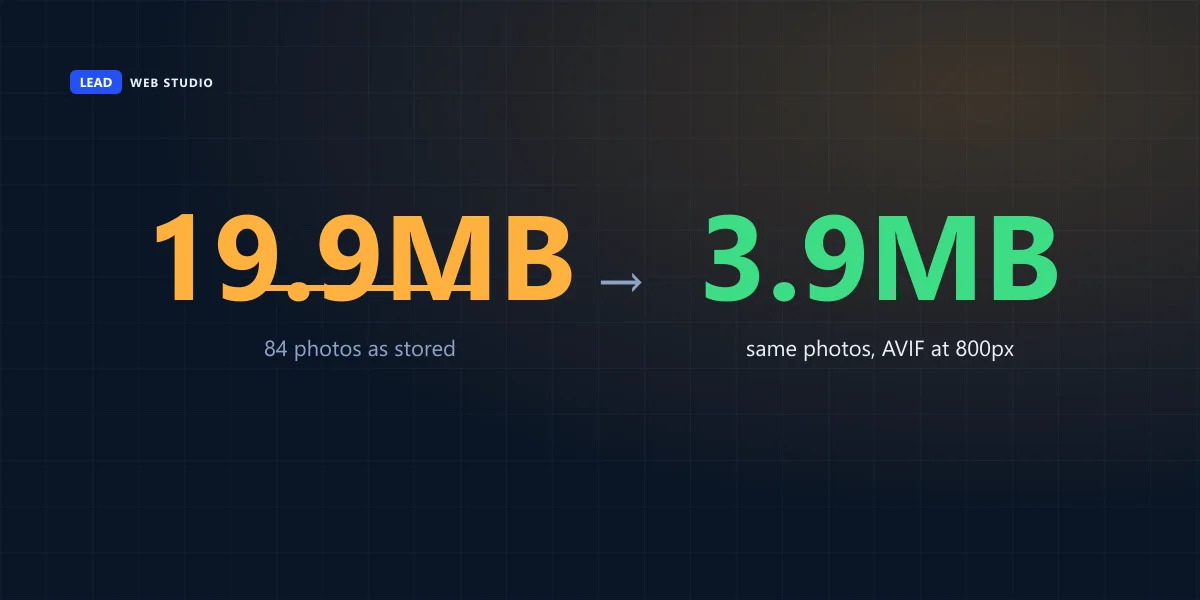
I took the 84 JPEG photos in the folder where I keep images for my Google profile posts. Together they weighed 19.9 MB. I resized each one to 800 pixels wide and saved it three ways: JPEG at quality 80 with the mozjpeg encoder, WebP at quality 80, and AVIF at quality 55. Same photos, same width, three formats.
Measured with the sharp image library on 27 October 2026. Quality numbers don't mean the same thing across formats, so treat these as my settings, not a lab test.
Resizing alone did most of the work: about two thirds of the weight gone before the format even mattered. The surprise was WebP. The image-size guides I read today put WebP at 25 to 50 percent smaller than JPEG, as if it were a law of physics. On my photos it was smaller 62 times out of 84. On the 22 busiest pictures, the ones full of fine detail and texture, the JPEG came out smaller, and in total WebP lost by about 120 KB.
AVIF was smallest on every single one of the 84. MDN's guide to image file types lists AVIF support in Chrome 85, Edge 121, Firefox 93 and Safari 16.1, and still recommends a WebP, JPEG or PNG fallback through the picture element. That's what I do: AVIF first, JPEG behind it for anything older.
"If the rendered size is at least 4KiB smaller than the actual size, then the image fails the audit."
Chrome for Developers, Lighthouse: Properly size images (it also counts screen density)
That's the bar Google's own testing tool sets, and it's strict on purpose. If PageSpeed Insights tells you to "properly size images," it means exactly the sum above: the file is wider than the slot times the density.
Which format for which kind of picture?
Photos go out as AVIF with a JPEG behind them. Screenshots and graphics with flat colour and text go out as WebP. Logos and icons stay SVG whenever a vector file exists. The table is what I actually ship, not a list of every format ever invented.
| Kind of picture | What I use | Why |
|---|---|---|
| Job photo, room, team, product | AVIF, with JPEG as the fallback | Smallest on all 84 test photos; JPEG beat WebP on the detailed ones |
| Screenshot, chart, title card | WebP | Flat colour compresses very well: my 83 blog covers at 1200 × 630 have a median of 17.8 KB |
| Logo | SVG, or PNG if no vector file exists | Stays sharp at any size and keeps a transparent background |
| Icons | SVG | A few lines of code instead of a picture file |
Two formats you won't find in that table: HEIC, which is what an iPhone saves by default, and TIFF from a scanner or a print shop. Neither belongs on a web page. Convert them first. If a page on your site is slow and you suspect the images, my guide on how fast a small-business website should load shows how to check what Google measures.
The quality slider: where the savings stop
Most export dialogs default to quality 90 or 100. For a web photo, 80 is where I stop: below it, every step down buys you less and starts to show. Here's the busiest photo of the 84, a picture packed with fine lines, saved as WebP at 800 pixels with only the quality changed. The last column is what each step down saved against the one above it.
| Quality | File size | Saved |
|---|---|---|
| 95 | 434.7 KB | start |
| 90 | 365.3 KB | 69.4 KB |
| 80 | 276.2 KB | 89.1 KB |
| 70 | 233.0 KB | 43.2 KB |
| 60 | 213.6 KB | 19.4 KB |
From 95 to 80 the file loses 158 KB. From 80 to 60 it loses only about 63 KB more, and that's where skies get blotchy and edges get fuzzy. For comparison, the calmest photos in my test came out at 13 to 15 KB in WebP at the same width. The format and the slider matter far less than the picture itself.
How the page sends phones the small copy
You give the browser a few widths of the same photo and tell it how wide the slot is. It picks the smallest file that still fills the slot on that screen. MDN's responsive images guide describes it: when there's no exact match, the browser takes the first image bigger than the slot and scales it down.
This is roughly the code I put on a page for a photo in a 740 pixel column. It's the part to ask your designer about, because most site builders and themes do some of it and skip the rest:
<picture>
  <source type="image/avif"
    srcset="deck-800.avif 800w, deck-1480.avif 1480w"
    sizes="(max-width: 788px) calc(100vw - 48px), 740px">
  <img src="deck-1480.jpg"
    srcset="deck-800.jpg 800w, deck-1480.jpg 1480w"
    sizes="(max-width: 788px) calc(100vw - 48px), 740px"
    width="1480" height="985" loading="lazy"
    alt="New cedar deck with a glass railing">
</picture>
The width and height at the bottom matter more than they look. They let the browser hold the space before the photo arrives, so the text doesn't jump down while someone is reading it. And loading="lazy" goes on every image except the big one at the top: the first picture a visitor sees should start downloading immediately.
Before you upload your next photo
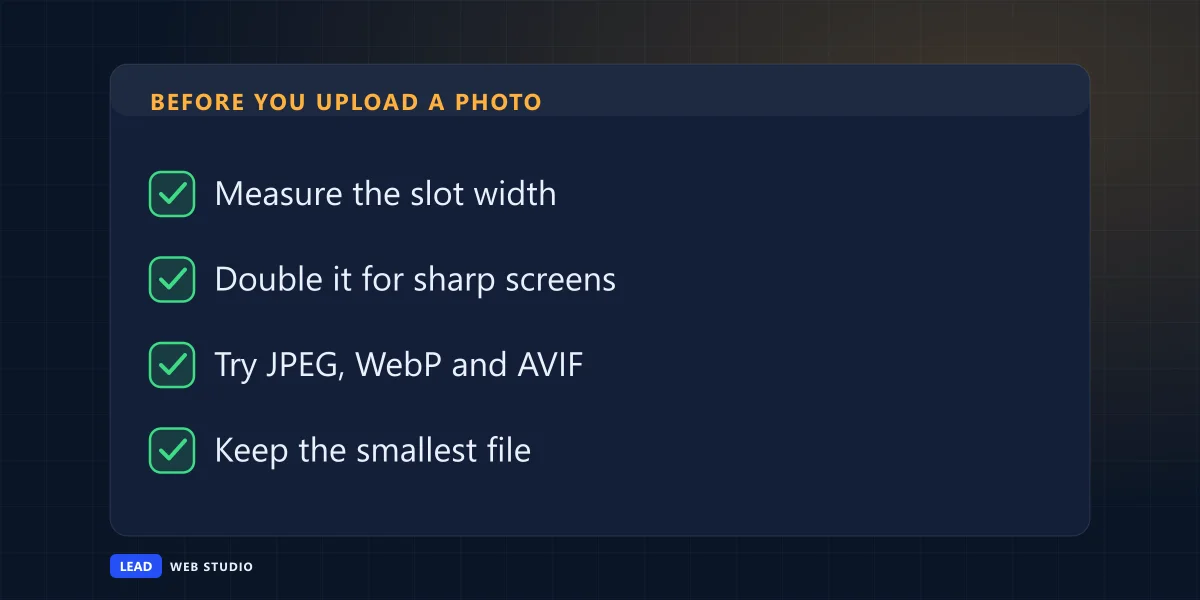
Find the slot width with Inspect in Chrome, as above, or ask whoever built your site what width their image boxes are.
Multiply it by two. For a full-width banner, stop around 2,000 pixels.
Resize and convert before uploading. My free image converter resizes photos and turns JPG or PNG into WebP right in your browser, and nothing gets uploaded to me.
Compare the file sizes and keep the smaller one. On a very detailed photo, don't be surprised when the JPEG wins.
Keep the original, full-size photo somewhere safe. You'll want it when the site gets redesigned, and you can always make a smaller copy from a big file but never the other way round.
If you're starting a new site, send me the originals and I make the web copies at build time; my content and photo checklist before a website build covers what to gather. One more thing worth checking while you're sorting photos: whether you actually have the right to use each one. I wrote up who pays when a website photo turns out to be someone else's.
Questions people ask me about image sizes
What size should a hero image be?+
Take the width the hero fills on a large laptop screen and double it for sharp screens, then cap it around 2,000 pixels for a photo. Add a separate, smaller copy for phones through srcset, so a phone never downloads the desktop file. The hero is the one image that should not be lazy-loaded.
Does 72 DPI matter for website images?+
No. DPI is a note inside the file for printers, and browsers ignore it. A 1,200 pixel wide photo shows the same on screen whether the file says 72 or 300. What matters on a website is the width in pixels and the weight in kilobytes.
Is WebP always smaller than JPEG?+
No. When I re-exported 84 of my own photos at 800 pixels, WebP was smaller on 62 of them and larger on the 22 busiest, so in total it came out slightly heavier than a well-compressed JPEG. AVIF was smallest on all 84. Export both and keep the smaller file.
How many KB should a website photo be?+
At 800 pixels wide, most of my test photos landed between 13 and 60 KB, and the busiest pictures around 200 KB in JPEG or WebP. My working rule is under 100 KB for an ordinary photo in a content column, and a second look at anything over 200 KB.
Do image sizes affect Google rankings?+
Indirectly. Heavy images slow the page, and the largest image near the top is often what Google's Largest Contentful Paint measures. Lighter images make the page faster for visitors. Nobody can promise a ranking change from that alone, but a slow page never helps.
Sources, read on 27 October 2026: Chrome for Developers on Lighthouse: properly size images for the 4 KiB rule and screen density; MDN on responsive images for srcset and sizes; MDN on image file types for AVIF and WebP support. The 84-photo test and the quality ladder are my own measurements; the deck in the code sample is an invented example.
Is your site carrying photos it doesn't need?
Send me your address and I'll look at what your pages download and which images are heavier than their slot. Image care is part of website maintenance and support, and every site I build in hand-written code ships with resized copies from day one.
Get My Free Quote
I build websites in hand-written code for service businesses around Toronto, and resizing a client's phone photos to the width they actually show at is part of every build. Read my full bio · Get in touch