A supplier emails a credit application, your landlord sends the lease renewal, the bank wants one more form back by Friday. You don't own a printer, or you do and it's out of cyan again, which apparently matters for a black signature. Good news: you can sign a PDF for free on the phone or laptop you already have, with no app to buy and no trial to cancel later. I read the official help pages of seven ways to do it this morning, and each free way comes with one small catch worth knowing before you hit send.
How do I sign a PDF for free?
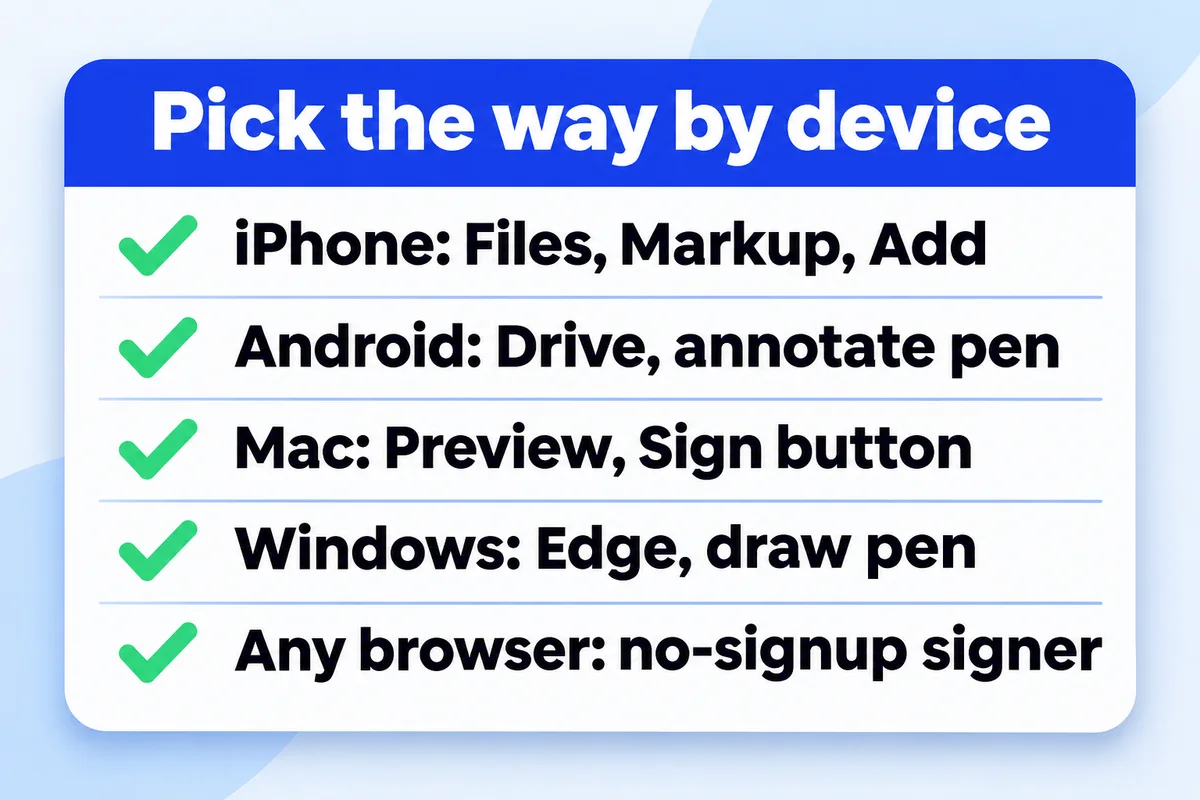
Open the PDF in the app your device already has for PDFs, add a signature you draw with a finger or mouse, place it on the line and save a copy. iPhones do it in Files, Android phones in Google Drive, Macs in Preview and Windows PCs in Edge. None of them asks for money.
The exact buttons differ, so find your device below. I've used the names from each maker's own help page, not from memory, because the menus move around every couple of years and "tap the little pen thing" is how people end up sending a PDF with a doodle on it.
iPhone or iPad
Built in, Apple's Files app
- Save the PDF to Files and open it there.
- Tap Markup, then Add, then Add Signature.
- Sign with your finger, tap Done and drag it onto the line.
Android phone
Google Drive app, Android 6.0 or later
- Open the PDF in Drive.
- Tap the annotate button at the bottom right and pick the pen.
- Write your signature, then save a new copy.
Mac
Built in, Preview
- Open the PDF in Preview and show the Markup toolbar.
- Click Sign, then create one with the Trackpad, the Camera or your iPhone.
- Click the signature and drag it into place.
Windows PC
Built in, Microsoft Edge
- Open the PDF in Edge.
- Pick the drawing pen in the PDF toolbar.
- Sign with the mouse or a touchscreen and save.
Any browser, no install
My free signer on this site
- Drop one PDF or a whole stack in.
- Type your name, draw, or upload a photo of your signature.
- Click the line and download the signed copy.
If your iPhone runs the newest system, Apple also lists a Preview app on the iPhone with a Form Filling button, and the Files app offers AutoFill for empty boxes on a form. Handy for the boring part above the signature line: name, address, phone. On Android, Drive has a separate Form Filling option under Edit for PDFs built as real forms, and Google says plainly that if you don't see it, that file can't be filled that way.
What does each free way ask of you?
Not money, but something: an account, a place your signature is kept, or a kind of form it refuses. Built-in apps ask the least. Online signers from the big software companies ask you to sign in or risk losing the file. The table puts the seven official pages side by side.
| Free way | Account | Your saved signature lives | The catch the help page names |
|---|---|---|---|
| iPhone Files and Markup | None named | On the iPhone, ready for the next form | Markup works on PDFs and pictures; a Word file has to become a PDF first |
| Google Drive on Android | Your Google account, as for any Drive file | Drawn fresh each time with the pen | Needs Android 6.0 or later |
| Preview on a Mac | None named | On every Mac where you use iCloud Drive | A form that won't take typing needs the Text Box tool |
| Microsoft Edge | None named | Not described | No XFA forms, no JavaScript forms |
| Adobe's online signer | Sign-in to finish a form | In your Adobe account | The file is deleted unless you sign in to save it |
| Dropbox Sign, free plan | Dropbox account | In your account | 3 requests to other people a month |
| My signer on this site | None | Nowhere, the page forgets it when closed | Places an image of your signature, like print, sign and scan |
Adobe's own page is a little confused about the account part, by the way. One step says you must be signed in to complete the form, and a question further down says the person receiving a document can sign without an Adobe account. Both may be true for different flows. I'd just expect the sign-in box and not be surprised.
Three ways a free signature goes wrong
None of these is the tool's fault. Each one is a small habit, and I've watched owners trip on all three.
The government form that won't type in Edge
Some official and insurance PDFs are built in an older form format called XFA. In Edge the boxes sit there and ignore you, or the page shows a message asking for a different viewer. That isn't your computer being broken. Edge simply doesn't read that format.
Open the same file in Adobe Acrobat Reader (the free desktop app), fill it there, sign there, done. Five minutes instead of an afternoon of rebooting.
"XFA, is a legacy format of forms that isn't supported in Microsoft Edge." Microsoft, Edge PDF reader documentation
Drawing on the only copy
The pen writes on the file you opened. Sign in the wrong spot, save, and the mistake is now part of your only copy of the contract. Google's Drive page offers the way out: save the marked-up file as a new copy with a new name, and the original stays clean.
I'd do the same on every device. Keep the unsigned PDF until the other side tells you they got the signed one and it opens.
Your signature on the family Mac
Apple's Preview page says your saved signatures show up on your other Macs when you use iCloud Drive. Lovely on your own two laptops. Less lovely on the shared desktop in the kitchen that is signed into your Apple account, where anyone can now click Sign and drop your autograph on a permission slip.
If more than one person uses a Mac, open Preview's Sign menu once and look at whose signatures sit in there. Delete what shouldn't be.
When does someone else need to sign too?
When the document needs a second signature, the free built-in apps stop being enough, because they sign for you and nobody else. Then you send a signature request. Dropbox Sign's free plan sends 3 requests a month and lets you sign your own files without limit. Google's eSignature in Drive works on Workspace Individual and business plans.
Google's version takes up to 10 signers on one document and up to 200 fields, which covers any quote or service agreement a small business sends. If you already pay for Google Workspace on your own domain, check whether your plan is on Google's list before you pay for anything else. My breakdown of what business email on your own domain costs shows the Workspace plans small businesses usually end up on.
What these services add on top of a drawn signature is a record of who signed, when and from where. Whether you need that record depends on who receives the paper, not on how important it feels. I wrote up what Ontario's law accepts in are electronic signatures legal in Ontario, including the documents that still want ink. And if the PDF in front of you is a website deal, read what a web design contract should say before you sign it, free or not.
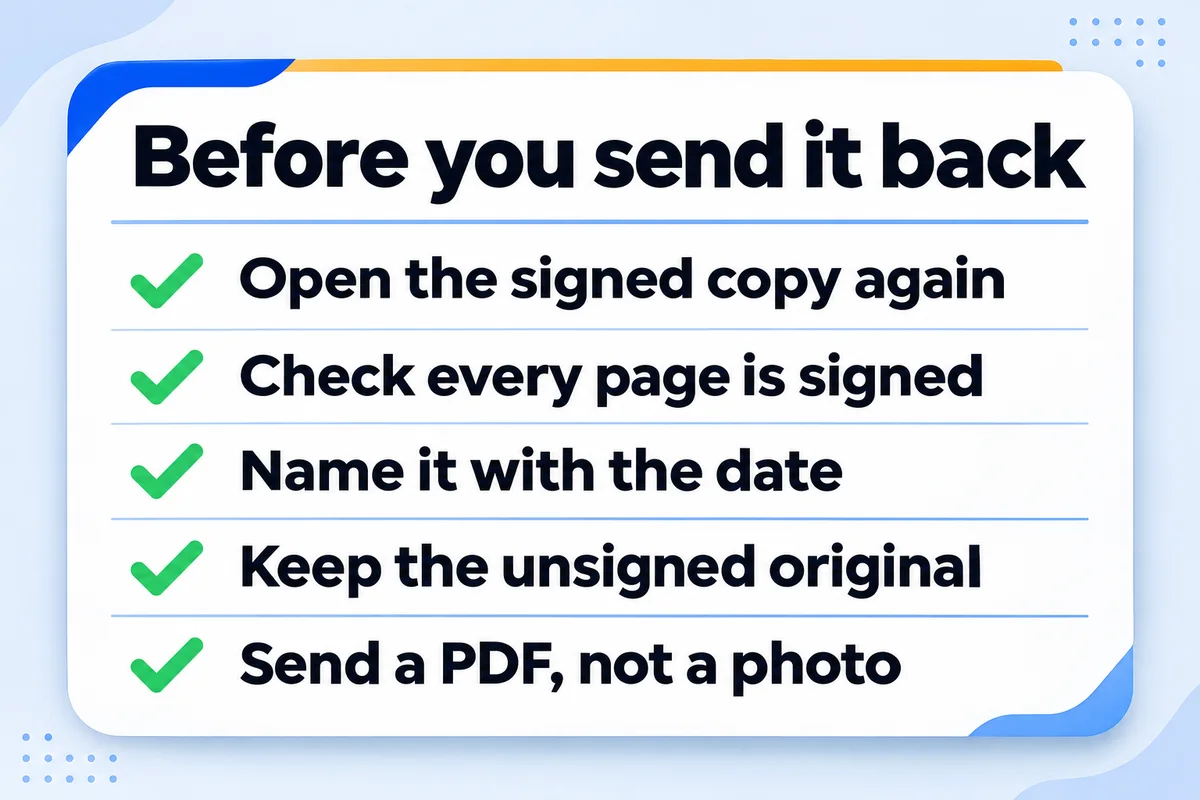
A two-minute check before you send it back
The signing takes a minute. Most of the back-and-forth emails I see come from the minute after it.
- Open the signed copy you're about to send, not the window you signed in. Some apps keep the signature on screen and never write it into the file.
- Scroll the whole document. Leases and credit applications love a second signature line on page 6 and initials on every page.
- Give the file a name with the date, like lease-signed-2026-11-11.pdf, so the next person can tell it from the unsigned one.
- Keep the unsigned original in the same folder.
- Send a PDF back, not a screenshot or a photo of your screen. A photo of a contract is how a two-minute job becomes "can you resend that?"
Where my free signer fits
I built the free document signer on this site for the jobs the built-in apps make awkward: a stack of ten PDFs that all need the same signature in the same spot, a laptop that isn't yours, or a person who just doesn't want to make another account. You drop the files in, sign once, tick "Put it on every document" and get one ZIP back. There's no watermark and no limit, and the PDFs are opened and saved inside your browser, so they never reach my server.
It places an image of your signature, the same as printing, signing and scanning. For a lender, court or insurer that asks for a certified electronic signature with an identity check, use a certified provider. For the credit application from your supplier, it's plenty.
Short answers about signing PDFs for free
Can I sign a PDF on my phone without an app?+
Yes. On an iPhone, open the PDF in Files, tap Markup, then Add and Add Signature. On Android, open it in the Google Drive app and use the annotate pen, which Google says works on Android 6.0 or later. Neither needs a separate signing app.
Why can't I type into the boxes of a PDF form in Edge?+
The form is probably an XFA form or one that relies on JavaScript. Microsoft says the Edge PDF reader supports neither. Open the same file in Adobe Acrobat Reader, which reads those forms, fill it there, then sign it.
Is a free signature less valid than a paid one?+
The price of the tool doesn't decide it. A drawn or typed signature placed on a PDF is accepted for most everyday paperwork. What paid services add is a record of who signed and when, which a lender, court or insurer may ask for.
How many documents can I send for signature for free?+
Dropbox Sign's free plan sends 3 signature requests a month, and signing your own documents there doesn't count against that. Google's eSignature in Drive needs Workspace Individual or an eligible business plan and takes up to 10 signers per request.
Does signing a PDF change the original file?+
It can. Some tools save the signature into the file you opened. Google Drive on Android offers to save a new copy under a new name, and my own signer always downloads a separate signed copy. Keep the unsigned original until the other side confirms they got yours.
Sources, read on 11 November 2026: Apple, Fill out forms, sign documents and create signatures on iPhone; Apple, Fill out and sign PDF forms in Preview on Mac; Google, Annotate PDFs on Android; Google, Fill out PDF forms in Google Drive on Android; Microsoft, Edge PDF reader; Adobe, Sign PDF online; Dropbox, Dropbox Sign free plan; Google, Send signature requests with eSignature.
Customers sign your quotes after they look you up
If your website is the reason a quote sits unsigned for a week, send it to me. I'll tell you what a customer sees before they reach for the pen.
Get My Free Quote
I build hand-coded websites for small businesses around the GTA, and a handful of free tools on this site, the document signer among them. I haven't owned a working printer since 2019. Read my full bio · Get in touch