Yesterday an automated scanner found two unprotected forms on a client site I look after and hammered them until the inbox filled with junk. That was a loud problem, and loud problems get fixed the same morning. The quiet version costs far more: contact form emails going to spam, or never leaving the server at all, while the owner sits there for three weeks thinking business is slow. Nobody complains, because the person who tried to reach you has no idea their message vanished — they think you ignored them. I have opened live websites, hit send on the contact form, and watched absolutely nothing happen. So here's the whole thing: the three places the message actually dies, the one mistake behind most of it, and a test you can run yourself in ten minutes without calling anybody.
The short version
- The form is rarely what's broken. The message either never left, couldn't prove who sent it, or arrived and got filed somewhere you don't look.
- The number one cause: sending as the visitor. Your server can't prove it's allowed to send as
@gmail.com, so the message fails authentication. - The fix is one line. From = your own domain. Reply-To = the visitor. Reply still works.
- SPF and DKIM aren't optional any more. Google's sender guidelines require every sender to have at least one.
- Test it with a Gmail address, not your own domain — mail to yourself often never leaves the server, so it proves nothing.
- Log every submission server-side. Without a log you can't tell "nobody wrote" from "everything was lost".
Why do my contact form emails go to spam?
Usually because the message can't prove who sent it. Most forms are wired to send from the visitor's own address through your web host's server, so Gmail gets a message claiming to be from gmail.com that gmail.com never sent. That fails authentication, and a message that fails authentication gets filtered, delayed, or quietly dropped.
That's the short answer, and for most sites it's the whole answer. But "in spam" is only one of three ways a form email disappears, and they need completely different fixes — so before changing anything, work out which one you actually have.
The three places a form email dies
Think of it as a pipe with three joints. The form hands the message to your server, the server hands it to the internet, and the receiving mailbox decides what to do with it. Each joint fails in its own way, and each one leaves a different fingerprint.
| What you see | What actually happened | Where to look |
|---|---|---|
| Nothing arrives anywhere, ever | The server never sent it | Server error log, form log, SMTP settings |
| It's in Spam or Junk | Sent, but couldn't prove its identity | SPF, DKIM and DMARC on the sending domain |
| Arrives days later | Sent, identity weak, greylisted | Same as above — authentication |
| Arrives but you never saw it | Delivered into a tab, filter or forward | Gmail filters, Promotions tab, forwarding rules |
| Arrives for you, not for staff | One recipient's mail server rejects it | The recipient's provider, not your site |
The first row is the one people never suspect, because a form that's broken at that joint still shows the thank-you message. The page doesn't wait to hear whether the mail actually went — it says "thanks, we'll be in touch" and clears the fields. On a site built with the server's basic built-in mail function, the code often gets told "accepted" the moment the message is handed off, and then it's dropped somewhere further down with nobody watching. Your visitor saw a green checkmark. You got nothing. Both of you are satisfied that it worked.
That's also why I treat the confirmation screen as a claim rather than proof. If the page can say "sent!" without anything having arrived, then "sent!" is decoration. This is the same failure I wrote about in the guide on making sure leads actually reach you — there it inflated the analytics; here it hides a dead form completely.
The From-address mistake behind most of it
Here's the specific line that breaks the majority of the forms I'm asked to look at. The form collects the visitor's email, and then it sends the notification with that address in the From field, because it feels natural — the message is from the customer, right? Except it isn't. It's from your website, about the customer.
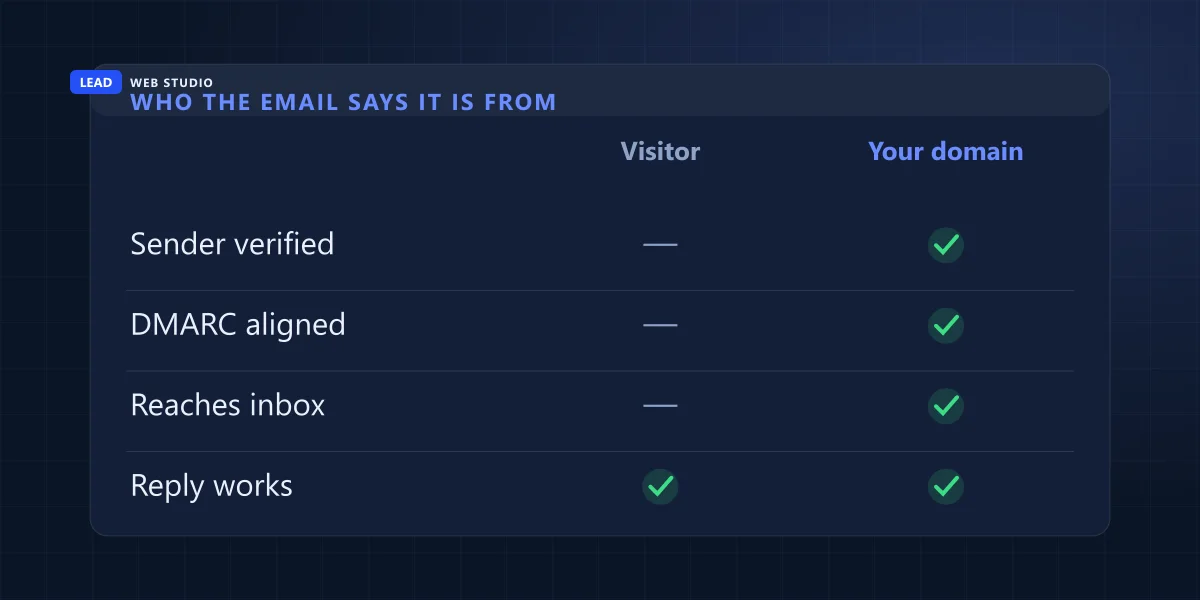
Mail servers check whether the machine sending a message is authorised to send for the domain in the From address. Your web host is authorised to send for your domain. It is emphatically not authorised to send for gmail.com, outlook.com, or your customer's company domain — and the big providers publish policies telling the world to distrust anything that claims otherwise. So the moment you put the visitor's address in From, every check the receiving server runs comes back "this doesn't line up", and your enquiry gets treated exactly like a phishing attempt, because structurally that's what it looks like.
The fix costs nothing and takes one line:
- From: a real mailbox on your own domain —
forms@yourbusiness.caworks well, because it's obvious in a search and easy to filter on. - Reply-To: the visitor's address. Hitting reply still opens a message straight back to the customer. Nothing about your workflow changes.
- To: the address you actually read. If two people need it, add the second one properly rather than forwarding.
That's it. Same information, same reply behaviour, and now the message is something your domain can vouch for.
SPF, DKIM and DMARC in plain English
These three are DNS records at your domain — settings, not software. Together they answer one question for the receiving mail server: is this sender allowed to use this domain? Without them your form mail is an anonymous stranger, and mail providers have spent twenty years learning to distrust anonymous strangers.
| Record | What it actually says | What happens without it |
|---|---|---|
| SPF | "These servers may send mail for my domain" | Any server can claim to be you; yours isn't trusted either |
| DKIM | "This message carries my cryptographic signature" | No proof the message wasn't altered or forged |
| DMARC | "If the first two fail, here's what to do about it" | No policy and no reports — you never learn you're failing |
This stopped being optional in 2024. Google's email sender guidelines now require every sender to authenticate with SPF or DKIM, and require both — plus a DMARC policy — from anyone sending in bulk, with a spam-complaint rate kept under 0.3%. Yahoo published matching requirements the same year. Your contact form isn't bulk mail, but it's judged by the same machinery, and a small sender with no authentication at all is the easiest thing in the world to filter. If you want the mechanics rather than the marketing version, the specification is maintained openly at dmarc.org.
Practically: your mail provider gives you the SPF and DKIM values, and you paste them into the DNS panel wherever your domain lives. Fifteen minutes, no cost. If you're not sure where your domain actually lives — that's a more common problem than it sounds, and I covered the ownership side of it in the guide to choosing and owning a domain.
Why the server's built-in mail function keeps letting you down
There's a difference between your website handing a message to the server and your website logging into a real mailbox and sending it. The first is the default on most cheap builds, and it's the one that fails silently: no login, no signature, no bounce report, and an IP address shared with every other site on that box — including whichever one got compromised last month and spent the weekend sending pharmacy spam. You inherit that reputation without ever knowing it exists.
The second way is what I use on every site I build. The site logs into a real mailbox on the client's own domain, with its own password, and sends the message the way a person would. The message is signed, it lines up with the domain, failures come back as visible errors instead of silence, and if the credentials ever stop working I find out from a check rather than from a customer who says "I emailed you last week."
One rule I hold to: one mailbox and one password per site, never a shared set reused across clients. Reusing credentials means a single leak takes out every site at once — and rotating them turns into an afternoon of hunting through files instead of a two-minute change. The same thinking runs through the rest of my website security basics.
How to test your own form in ten minutes
You don't need a developer for this and you don't need to wait for a real customer. Do it now, on the live site, exactly as a visitor would. The one thing that makes this test useless is testing with your own domain's address — mail from your site to your own mailbox can be delivered internally without ever facing the outside world, so it proves nothing about what a stranger's message does.

- Fill in the live form with a Gmail address you own and a subject you'll recognise. Use the real site, not a staging copy.
- Wait five minutes, then check Spam and All Mail before you check anything else. Half the "broken form" calls I get end here, and the answer is "it's been arriving all along, in Junk".
- Open the message, click the three dots, choose "Show original". Gmail prints SPF, DKIM and DMARC at the top with a PASS or FAIL beside each. That single screen tells you whether you have an authentication problem or a different one entirely.
- Look at who the message says it's from. If the From line shows the address you typed into the form rather than your own domain, you've found the fault from two sections ago. The same screen is how you read a message somebody else sent in your name — it tells you in about a minute which kind of impersonation you are looking at.
- Repeat once from your phone on mobile data. Rules out your office network and your own mail filters as the cause.
- Ask whoever maintains the site to log every submission server-side — timestamp, name, email, and whether the send succeeded. This is the part that turns "I think it's fine" into something you can check on a Monday morning.
That last step matters more than it looks. On my own site the log is the only reason I know the shape of what's coming in: over three weeks last month, 39 blocked bot attempts against 3 real messages. Without the log I'd have no way to tell a quiet month from a broken pipe — and neither do you. Silence is the default here for a structural reason: most email that fails never bounces back at you, because the receiving server accepts the message first and decides where to file it afterwards. If you'd rather have the technical half of your site checked automatically first, run it through the free website audit and start from what it reports.
The spam problem pointing the other way
There's a second version of this that owners bring up less often but suffer from just as much: the form works fine and delivers a river of garbage. That was yesterday's incident on a client site — an automated scanner hit two forms that had no bot protection on them and mail-flooded the inbox in a few minutes. Nothing was breached, and the site behind it was untouched, but the mailbox became unusable exactly when it mattered.
A flooded inbox and an empty one fail the same way in the end: you stop trusting the channel, and a real customer's message gets skipped over with everything else.
So every public form I build gets a bot check — I use Cloudflare Turnstile, which is invisible to the visitor and doesn't ask anybody to identify traffic lights. That 39-to-3 ratio in my own log is what an unprotected form would be dumping into an inbox every single week. Two things worth knowing if you're adding one: give the check a couple of seconds to load before the send button becomes live, or a fast visitor will get an error about a check they never saw; and keep the log running behind it, so the blocked attempts stay countable instead of merely invisible.
What I set up so this can't fail quietly
The whole point is to make silence impossible. A dead form is only expensive because nothing announces it — so here's the standing setup on the sites I look after, and it's short enough to hand to whoever maintains yours.
- The site sends through its own mailbox on its own domain, with a password used nowhere else.
- From is the domain, Reply-To is the visitor. Non-negotiable, and it's the fix for most of the sites I inherit.
- SPF and DKIM published, DMARC watching. Fifteen minutes once, then it just works.
- Every submission written to a server-side log, including the ones the bot check blocked.
- A weekly connection test that sends nothing to anybody. It logs into the mailbox, confirms the credentials still work, and hangs up. Proof the pipe is open without a single test email landing in a client's inbox — I stopped using real test sends for this after realising I was quietly spamming the people I was trying to protect.
- Two recipients on anything that matters, so one full mailbox or one holiday doesn't equal one lost customer.
None of that is exotic and none of it costs money beyond the hour it takes. It's the difference between a contact form as decoration and a contact form as a working phone line. If you'd rather it were somebody else's job to keep checking, that's what my website maintenance and support plans cover — and if you're planning a new site, it's built in from day one on every website I design.
If you take one thing from this page: go and submit your own contact form right now with a Gmail address, then open the result and read the From line. Two minutes, and it settles whether you have a delivery problem or a quiet month. If nothing arrives — or it arrives wearing your customer's name — send me the site and I'll tell you which of the three joints it is, at no charge.
Frequently asked questions
Why do my contact form emails go to spam?+
Usually because the message can't prove who sent it. Most forms are set up to send from the visitor's own address through your web host's server, so Gmail receives a message claiming to come from gmail.com that gmail.com never sent. That fails authentication, and a failed message gets filtered or dropped.
Should my contact form send email from the visitor's address?+
No. The From address must be a mailbox on your own domain, because that's the only domain your server can prove it's allowed to send for. Put the visitor's address in Reply-To instead. You still hit reply and answer the customer directly, and the message now passes SPF, DKIM and DMARC.
Do I need SPF, DKIM and DMARC for a small business website?+
You need at least SPF and DKIM. Google's email sender guidelines require every sender to authenticate with one of them, and both plus DMARC from anyone sending large volumes. They're DNS records at your registrar, they're free, and they take about fifteen minutes once your mail provider has given you the values.
My contact form worked for a year and then stopped. Why?+
Nothing about the form changed, so look at the pipe around it. The usual causes are a rotated or expired mailbox password, a full mailbox, a host that turned off the server's built-in mail function, or DNS that moved and left the SPF record behind. All four are invisible in the browser, which is why the form still looks fine.
How do I test my contact form without waiting for a customer?+
Submit the live form yourself with a Gmail address you own, not an address at your own domain. If it arrives, open it, choose "Show original", and confirm SPF, DKIM and DMARC all say PASS. If nothing arrives within five minutes, check Spam and All Mail before assuming the form is broken.
Not sure your contact form has ever actually worked?
Send me the address and I'll submit it, read the headers, and tell you exactly where the message goes — including if the answer is "it's fine, it's been a quiet month".
Get My Free Quote
10+ years building websites and local SEO for GTA trades, clinics and service businesses — and fixing the contact forms that were quietly swallowing their enquiries. Read my full bio · Get in touch