The call never comes on the day somebody leaves. It comes a week or two later, when the owner tries to change the phone number on the Google listing, or reset the website login, or work out why the enquiry emails stopped arriving — and finds that the only account that can make the change belongs to a person who does not work there any more. It is rarely anybody's fault. Access gets handed out one urgent favour at a time, and nobody writes any of it down. So here is the employee access checklist I wish more small businesses had: what to hand over on day one, what to take back on the last day, and the short list of accounts where "take back" is not actually something you can do.
The short version
- The password is the least important thing you take back. The recovery email and recovery phone control the account. Google's own leaver instructions remove those before changing the password.
- Never hand over a shared login. Canada's Cyber Centre puts it in its baseline controls: unique individual accounts, and minimize or eliminate shared ones.
- One page covers it. Every account, who can get in, and how you would get in without them.
- Three things you may not get back: a Google Business Profile where they are the primary owner, a domain sitting in their personal registrar account, and any login whose second factor goes to their phone.
- Order matters on the last day. Recovery details, then password, then sessions, then remove. Doing it backwards can lock you out.
- It is more accounts than you think. I counted my own: nine logins have to exist for this website to work, and my footer alone links to thirteen third-party profiles.
What access do I actually need to take back when an employee leaves?
Everything they could log into, plus everything that could be used to reset one of those logins. That second half is the part almost everyone misses: the recovery email address, the recovery phone number, active sign-in sessions, app passwords, and any account where they are listed as an owner rather than a user. Changing a password removes nobody on its own.
A login is made of five separate things, and most people only think about the first: the password, the second factor, the recovery route, the sessions already signed in on devices you never see, and the permission list that says who is allowed to change the other four. Deal with the password only, and the remaining four still work. That is the ordinary reason an ex-employee still has access three months later while the owner is certain they were removed.
Why is changing the password not the first step?
Because a password is the credential that whoever controls the recovery address and phone can reset at any time. Change the password while their mobile number is still sitting in the account's recovery settings and they can put it straight back. Take the recovery routes away first, and the password change becomes final instead of temporary.
You do not have to take my word for the order. Google's own instructions for maintaining data security after an employee leaves are numbered, and the password is step three:
- Wipe the mobile devices. "Use the Admin console to remotely remove data from the user's device."
- Kill the recovery routes. "Remove the user's recovery email address and phone number so they can't use the password recovery feature to access their old account."
- Change the password. "This can greatly reduce the risk of unauthorized access to their old account." The same step does double duty, because "changing a user's password also revokes OAuth 2.0 tokens issued for accessing certain products."
- Reset the sign-in cookies. "This also reduces the risk of unauthorized access." This is what actually signs a person out of the browser they left logged in at home.
- Revoke the leftovers. "Revoke any security keys or application-specific passwords that have been granted access to the user's account."
- Move the data, then delete. "Move any of the user's data that you want to save to another account. Then delete their original account completely."
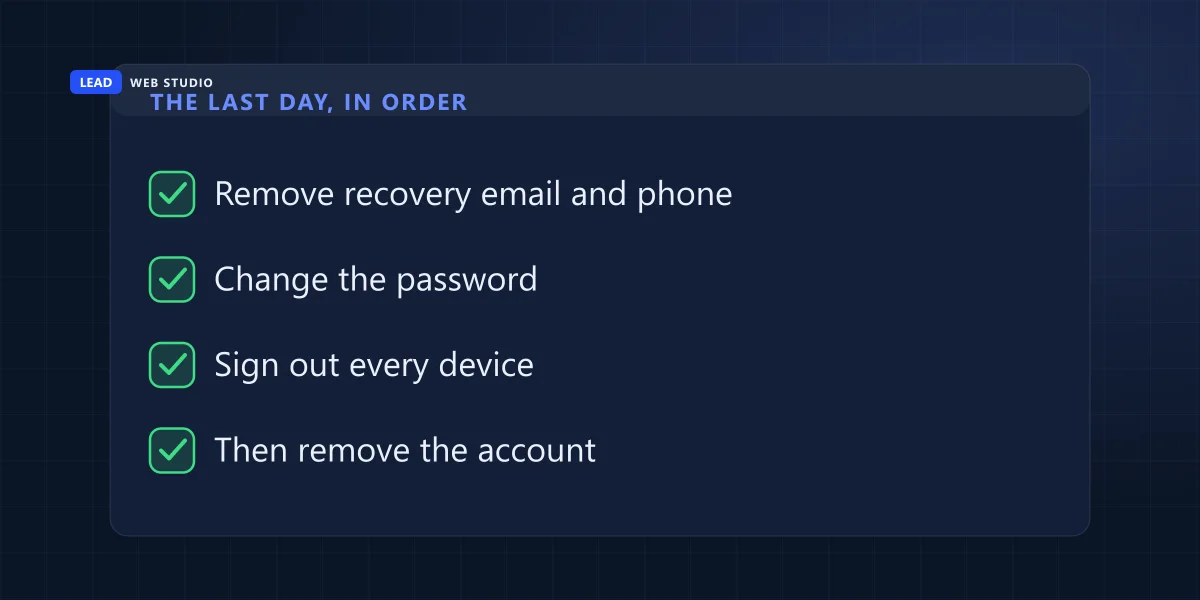
That list is written for Google Workspace, which is where a lot of small businesses keep their email. The order generalises to everything else — your website admin panel, your booking system, your payment processor. Recovery first, secret second, sessions third, removal last. And note the last step: data before deletion. Google keeps a deleted user restorable for roughly twenty days, and after that the mailbox is gone. If you would rather keep it searchable without paying for a full seat, an Archived User licence is the cheaper way to hold it.
What should a new employee get on day one?
An account in their own name on every system they need, at the lowest permission level that lets them do the work, created by you from your admin panel. Never your own login, never a password that three other people already know. Add them as a user on things you own; do not make them an owner of anything.
The rule behind that is not mine either. Canada's Baseline Cyber Security Controls for Small and Medium Organizations says organizations should "give all users unique individual accounts and minimize or eliminate the use of shared or shared-use accounts", that users should have "only the minimal functionality required to perform their tasks", and that you should "remove accounts and/or functionality when employees no longer require these for their tasks." That is a government of Canada document written for businesses of exactly this size, and it is free.
In practice, day one looks like six things:
- Create the account yourself, in their name. Their own email address, their own password, their own second factor on their own phone.
- Choose the smallest role that works. Most content jobs need "editor", not "administrator". The gap between those two words is the difference between someone who can write a page and someone who can delete the site.
- On the Google Business Profile, add them as a Manager — never an Owner. Google's own page on owners and managers is explicit that a manager has mostly the same access as an owner, and that "the only exception is they can't add or remove users or remove the profile." That exception is precisely the power you want to keep.
- Put them into the shared inbox as a member, not as a login. More on that below; it is the part most businesses set up the other way round.
- Leave the recovery details pointing at you. Where the platform lets you set an admin or billing contact, that contact is the business, not the new hire.
- Write the row on the register the same day. Which account, what role, granted on what date. Ten seconds now, and the last-day list writes itself later.
One more thing worth knowing before you plan a handover: a brand-new manager or owner on a Business Profile has to "wait 7 days before you can manage some profile features", and during that window they cannot remove other users or transfer ownership. If you are handing a listing between two people, start a week before you need it, not the afternoon of.
In the cases I get called about, the part that cannot be undone almost always traces back to one click in somebody's first week: Owner ticked where Manager would have done the job.
What goes on the access register?
One page, one row per account, three columns: what it is, what happens on day one, what happens on the last day. It can live in a spreadsheet or a notebook. What matters is that it exists before you need it, because the day you need it is the day somebody is already gone and nobody remembers what they were given.
Here is the version I would hand a service business with a website, a Google listing and a couple of staff.
| Account | Day one | Last day |
|---|---|---|
| Their work mailbox | New mailbox on your domain, in their name | Transfer the data, then archive or delete |
| The shared inbox (info@) | Add as a member of the group | Remove the membership — no password to change |
| Website admin / CMS | Named user, lowest role that works | Delete the user, not just its password |
| Domain registrar | Nothing. This never leaves the owner | Confirm the registrant email is still yours |
| Hosting / control panel | Separate panel or FTP user if truly needed | Delete the user and rotate the deploy key |
| Google Business Profile | Manager, never Owner | Remove the user (only an owner can) |
| Search Console & Analytics | Add as a user on your property | Remove the user; export history first |
| Payment processor | Their own team login | Remove, then check for API keys they made |
| Business phone / messaging | Forward the number, never hand over the SIM | Confirm the number is back before they go |
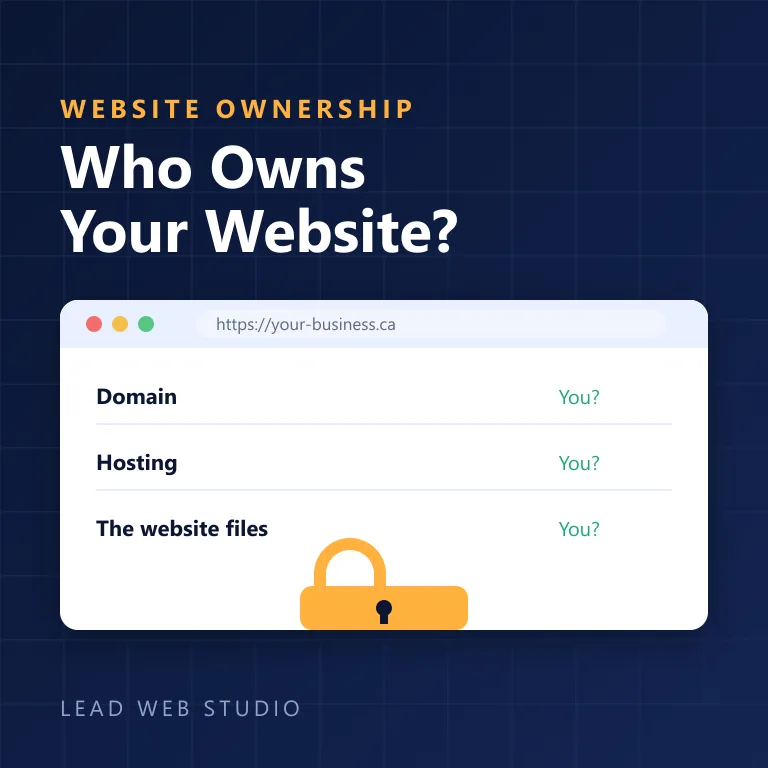
Look at the grey row. The registrar is the one account where the correct day-one action is to do nothing at all, because everything else on the list is downstream of it — lose the domain and your email, your website and your Google listing all break at once. If you have never checked whose name yours is in, that takes about a minute and the how-to is in who really owns your website, and the reasoning for keeping it separate from everyone else is in choosing and owning a domain name.
What does the last day actually look like?
About an hour of clicking, done in a fixed order, ideally on the afternoon they leave rather than the following week. Get the data out, cut the recovery routes, change the secret, end the sessions, revoke the leftovers, then remove the person. Removing them first is the common mistake, because once the account is gone you have lost the admin screen you needed for every earlier step.
- Get the data off first. Files, contacts, anything the business needs. Once the account is gone, so is the window.
- Remove the recovery email and phone from every account they held.
- Change the password on their own account, and on anything that was genuinely shared — that second part is the tax you pay for having shared it.
- Sign out every session. In Workspace this is "reset sign-in cookies"; most other systems call it "sign out of all devices".
- Revoke app passwords, API keys, security keys and connected apps. This is where a departing developer's deploy key or a marketer's scheduling tool quietly lives on.
- Remove them as a user everywhere — website, Business Profile, Search Console, Analytics, payment processor, booking system.
- Keep the mail flowing. Alias or forward the old address to someone who reads it, so customers writing to a person who left do not get a bounce.
That last step costs real money and never appears on a security checklist, because it is not a security problem. Suppliers, insurers, booking systems and repeat customers keep writing to a named work address for years after the person has gone. When those messages bounce, the sender gets an error and you get nothing — no copy, no notification, no way to know it happened.
Why does one shared login cause so much trouble?
Because a shared login has no concept of a person, so nothing you can do to it applies to one individual. You cannot revoke one person's access without revoking everyone's. You cannot tell who made a change. And its two-factor code arrives on exactly one phone, which belongs to one person who will eventually leave, change number or stop answering.
| What you need to be able to do | One shared login | A named account each |
|---|---|---|
| Remove one person's access | Everyone gets a new password | One click, nobody else notices |
| Know who changed something | No way to tell | Named in the activity log |
| Give each person their own second factor | One phone gets every code | Each person, each phone |
| Survive somebody leaving | Codes may go to a phone you cannot reach | Nothing else changes |
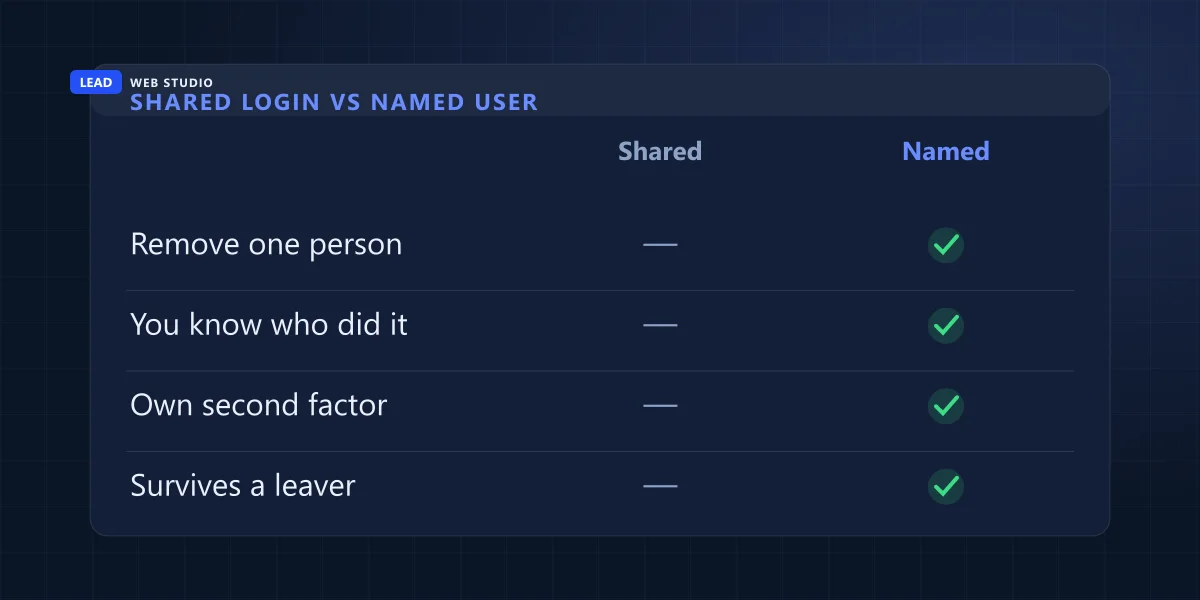
The third row is the one that turns a nuisance into an emergency. A shared account protected by two-factor authentication is protected by one person's phone, and if that person leaves on bad terms or simply stops answering, the account is locked for everybody including you. I wrote up the recovery side of that in two-factor authentication and the lockout nobody plans for, because the recovery codes are the bit people skip and then need at the worst possible moment.
What should I do about the shared inbox?
Make it a group or an alias that delivers into people's own mailboxes, not a mailbox everyone logs into with one password. Then adding or removing a person is one line in your admin panel, nobody has to be told a new password, replies still come from the business address, and the history stays with the business rather than with whoever happens to hold the login.
Plenty of the businesses I work with start the other way round: info@ is a real mailbox and its password gets passed to whoever needs to check it. That works until one of those people leaves, and then you are changing a password that everybody else also depends on, on a day when nobody has time for it. Groups and aliases are usually included in the plan you are already paying for — the differences between mailboxes, aliases and forwarding, and what each one actually costs, are laid out in business email on your own domain.
Which accounts might I not get back at all?
Three. A Google Business Profile where the person who left is the primary owner, a domain sitting in a registrar account they opened under their own name, and any login whose second factor goes to their personal phone. In all three the platform is behaving exactly as designed, and there is no support button that undoes it for you.
The Business Profile. Google's rule on owners and managers is short: "Only owners can remove other owners and managers", and "if you're the primary owner, you can't remove yourself until after you transfer primary ownership to someone else." So a manager cannot evict an owner, and a primary owner who has stopped replying to you cannot be removed by anyone but themselves. Your remaining route is to request ownership of the profile, where "the current profile owner is then notified by email and has 3 days to respond" — and even then, Google notes plainly that "the option to claim a profile isn't always available." That is why the day-one rule above is Manager, never Owner. If the listing is the thing carrying your phone calls, it is also worth knowing what a properly maintained one involves; that is the whole of Google Maps management, and the case for having a listing at all is in do you need a Google Business Profile.
The domain. If a staff member or a freelancer registered it on their own account, the renewal notices go to them, the transfer authorisation code is theirs to release, and your only real lever is asking nicely. This is the most expensive version of the problem, because a domain you cannot renew takes your email down with your website. When it does need moving — to your own registrar, your own hosting, your own control — website migration is the tidy version of that job, done without losing the search rankings you already have.
The second factor on a personal phone. Password known, code unreachable, account closed. There is no clever fix; there is only having set it up as a shared recovery route in advance, or having the recovery codes printed somewhere.
How many accounts does a small business website actually sit on?
More than most owners expect. I went through my own studio's site to count honestly rather than guess: nine separate logins have to exist for leadlls.com to be online, taking payments and delivering enquiries — and the footer of the homepage alone links to thirteen third-party profiles, each of which is another account somebody has to be able to get into.
| The login | What breaks without it |
|---|---|
| Domain registrar | The address itself — website and email both |
| DNS | Where the domain points (often the same account) |
| Hosting panel / SFTP | The files, and any ability to deploy a change |
| Mailbox & SMTP credentials | Contact-form messages stop being delivered |
| Google Business Profile | The map listing, hours, photos and reviews |
| Search Console | Indexing controls and 16 months of query history |
| Analytics / Tag Manager | Every traffic number you have ever collected |
| Anti-spam key (Turnstile) | The contact form starts rejecting real people |
| Payment processor | Online payments and the receipts that follow |
I am counting DNS separately from the registrar even though on my own setup they are the same login, because on plenty of setups they are not — and the day you discover which kind you have should not be the day you are trying to fix something. The thirteen public profiles are the ordinary directory footprint of a small business: Facebook, Instagram, LinkedIn, Yelp, the BBB, Crunchbase, Wikidata and half a dozen industry directories. None of them is critical on its own. Every one of them is a login somebody created at some point, often with whatever email address was handy that day.
If that list made you slightly uncomfortable, that is the correct reaction and it is also the honest argument for keeping one boring document. Nobody can remember nine logins plus thirteen profiles across two staff changes. Keeping that inventory current, along with the updates and backups, is what an ongoing website maintenance and support arrangement is actually for — and it is the same discipline I would want from anyone I hired, which is why the reference-call questions in how to vet a web designer include who holds the accounts.
Do this one thing today: open your Google Business Profile, go to Settings → People, and read the word next to each name. If anyone who no longer works for you is listed as Owner, that is today's job, because it is the one thing on this page you cannot fix later without their cooperation. Not sure what you are looking at on that screen? Send me your business name and I will walk you through what the roles mean and which one you should be.
Frequently asked questions
What access should I take back when an employee leaves?+
Everything they could log into, plus everything that could be used to reset one of those logins. The second half is the part people forget: the recovery email address, the recovery phone number, saved sign-in sessions, app passwords and any place they're listed as an owner rather than a user. Changing a password on its own removes nobody.
Should I delete a former employee's email account or just change the password?+
Move the data you want to keep first, then delete or archive the account. Google's own guidance is to transfer corporate data to another user before deletion, and a deleted Workspace user can only be restored for about 20 days. If you want to keep the mailbox searchable without paying a full licence, an Archived User licence is the cheaper option.
Can I remove someone from my Google Business Profile if they set it up?+
Only if you're an owner. Google states that only owners can remove other owners and managers, and that a primary owner can't remove themselves until primary ownership is transferred to someone else. If the person who left is the primary owner and won't help, your route is an ownership request, which gives them three days to respond.
Is it OK for staff to share one login?+
No, and Canada's Cyber Centre says so in its baseline controls for small and medium organizations: give all users unique individual accounts and minimize or eliminate shared accounts. A shared login can't be revoked for one person, can't tell you who did what, and its two-factor code goes to exactly one phone that may belong to someone who has left.
What happens to emails sent to a deleted employee's address?+
They bounce, and the sender is usually a customer who assumes you ignored them. Before deleting the mailbox, add the old address as an alias on a mailbox somebody still reads, or set forwarding for a few months. Suppliers, banks and booking systems keep writing to a personal work address far longer than anyone expects.
Which accounts should never be in an employee's name?+
The domain registrar account, the hosting account, and the primary ownership of your Google Business Profile. Those three control the address, the files and the map listing, and every other account is downstream of them. Staff and agencies should be added as users on accounts you own, never the other way round.
Not sure who currently holds the keys to your website?
I'll look at what's publicly visible about your domain and hosting and tell you plainly what looks like it's in your name and what doesn't — no charge, nothing to sign. If it turns out things need moving, website migration and ongoing maintenance & support are both published on the pricing page.
Get My Free Quote
10+ years building websites and local SEO for GTA trades, clinics and service businesses — and a fair amount of time spent getting owners back into accounts that were set up in somebody else's name. Read my full bio · Get in touch