You changed the phone number on your website, pressed Save, and your sister-in-law texts you a screenshot with the old one. Or the reverse: you still see the old price and your designer swears it's fixed. Website changes not showing is almost never a broken site. Somewhere between your editor and that phone sits a saved copy of the old page, and the job is to find out which one. This morning I read the cache rules of 36 Ontario business websites to see how long those copies are allowed to live.
Why does my website still show the old version?
Because a stored copy of the old page or file is answering instead of the new one. There are four places that copy can live: your own browser, a cache on the web server, a network in front of the server such as Cloudflare, and the editor itself if the change was saved but not published. Each one has a different fix and a different person who can clear it.
Saved as a draft, or edited on a second copy of the page.
Cleared by: whoever edits the siteA caching plugin or the host keeps a finished copy of each page.
Cleared by: the site admin or the hostCloudflare or a host's CDN keeps copies close to visitors.
Cleared by: whoever has that accountEvery phone and laptop keeps its own copy for as long as the site allows.
Cleared by: that visitor, or timeThe fourth one is the one people panic about, and it's the one you can do least about after the fact. A browser keeps a file for as long as your site told it to on the day it downloaded it. You can't reach into a customer's phone and delete it. You can only make sure the next change isn't stuck there too.
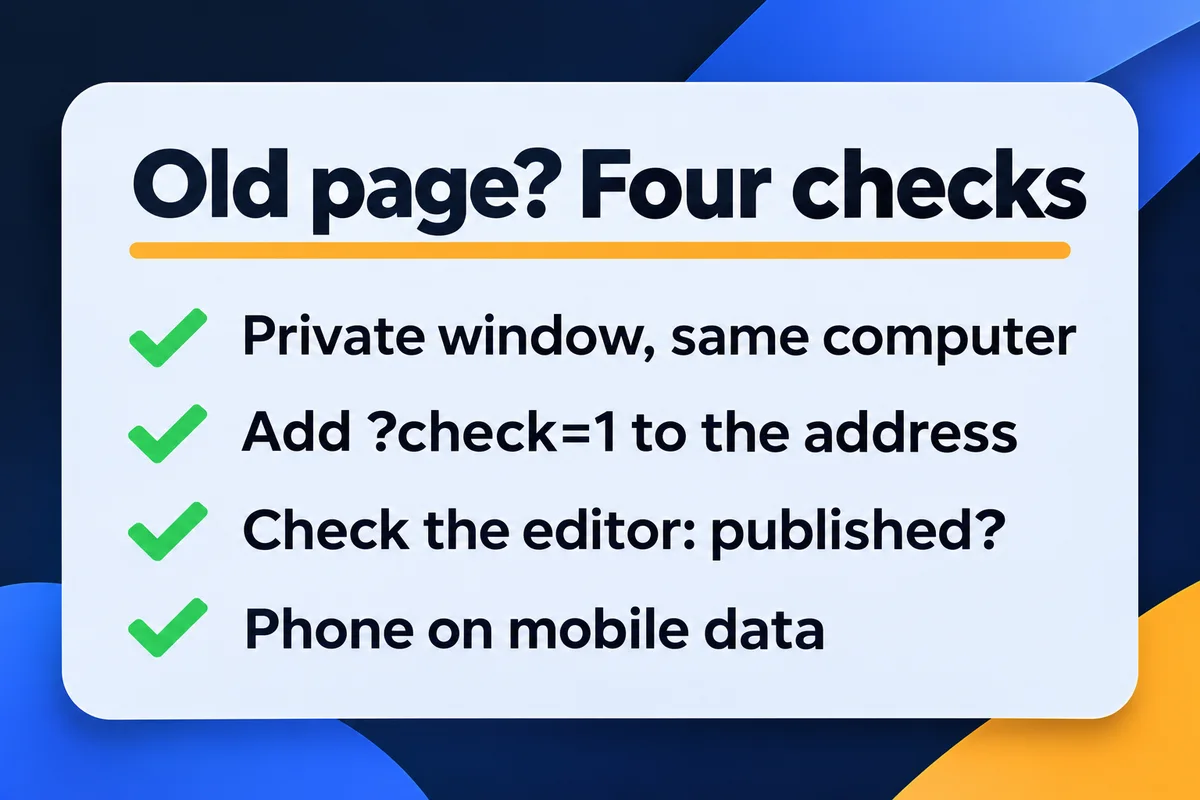
Find the old copy in four checks
Do these in order. Each one rules out a place, and none of them needs a login. Ten minutes, most of it waiting for your phone to stop autocorrecting the address.
- Open the page in a private window on the same computer. New version there? The old copy is in your normal browser. Press Ctrl+Shift+R on Windows or Cmd+Shift+R on a Mac to reload without it. Your customers are fine or will be soon. Still old? Go to check 2.
-
Add
?check=1to the end of the address and load it. New version now? A server or network cache is holding the old page under its normal address, and the made-up question mark made it fetch a fresh one. Purge the cache (the next section says where). Still old? Go to check 3. - Open the editor and look at the page you changed. Draft, scheduled or unpublished? Publish it. On Wix, Squarespace and most builders, Save and Publish are two different buttons. Published? Check that you edited the page people actually visit. Plenty of sites carry two near twins, say /contact and /contact-us, and only one of them is in the menu.
- Load it on your phone with Wi-Fi off, in a private tab. New version? Strangers will see the new page. Anyone who visited before still has the old copy until their browser's time is up. Old? Wait 10 minutes and try again. If it's still old, send the note further down to whoever runs the hosting.
The trick in check 2 works on most setups because caches file each page by its full address, question mark and all, so /prices/?check=1 is a page they've never stored. A few setups are told to ignore question marks. If yours is one of them, check 2 tells you nothing and you go straight to the purge.
How long 36 local sites tell browsers to keep the old copy
Every file a website sends comes with a line telling the browser how long it may reuse it. I read that line for the home page and the logo of 38 business sites around the GTA, 16 roofers and 22 clinics, the same set I used for my research on contact forms on phones. 36 answered. The logo is where things go wrong.
| How long a browser may reuse it | Home page (36 sites) | Logo (32 sites) |
|---|---|---|
| Must check with the server every time | 10 | 0 |
| Up to 10 minutes | 7 | 0 |
| 10 minutes to a day | 2 | 2 |
| 1 to 31 days | 3 | 9 |
| More than a month | 1 | 13 |
| No rule sent, the browser guesses | 13 | 8 |
Home pages are mostly sensible: 17 of 36 are fresh within ten minutes. Then there's the WordPress site that tells every browser to keep its home page for 365 days. Change the hours on that one and a regular customer could, in theory, see the old hours until next November. In practice they'd reload at some point. "In theory" is still not what you want next to your phone number.
The 13 with no rule at all aren't safe either. When a site sends nothing, the browser picks its own time. MDN's guide to HTTP caching explains the usual guess: about a tenth of the time since the file last changed. A page untouched for a year can be reused for over a month.
Then the server side. On 9 home pages an Age line showed the page came from a stored copy on the server or a network, not fresh from the site. Five of them were under an hour old. The oldest had been stored for 4 days and 15 hours. If someone edited that site on Friday and checked on Monday, the cache never heard about it.
Why a new logo takes the longest to show
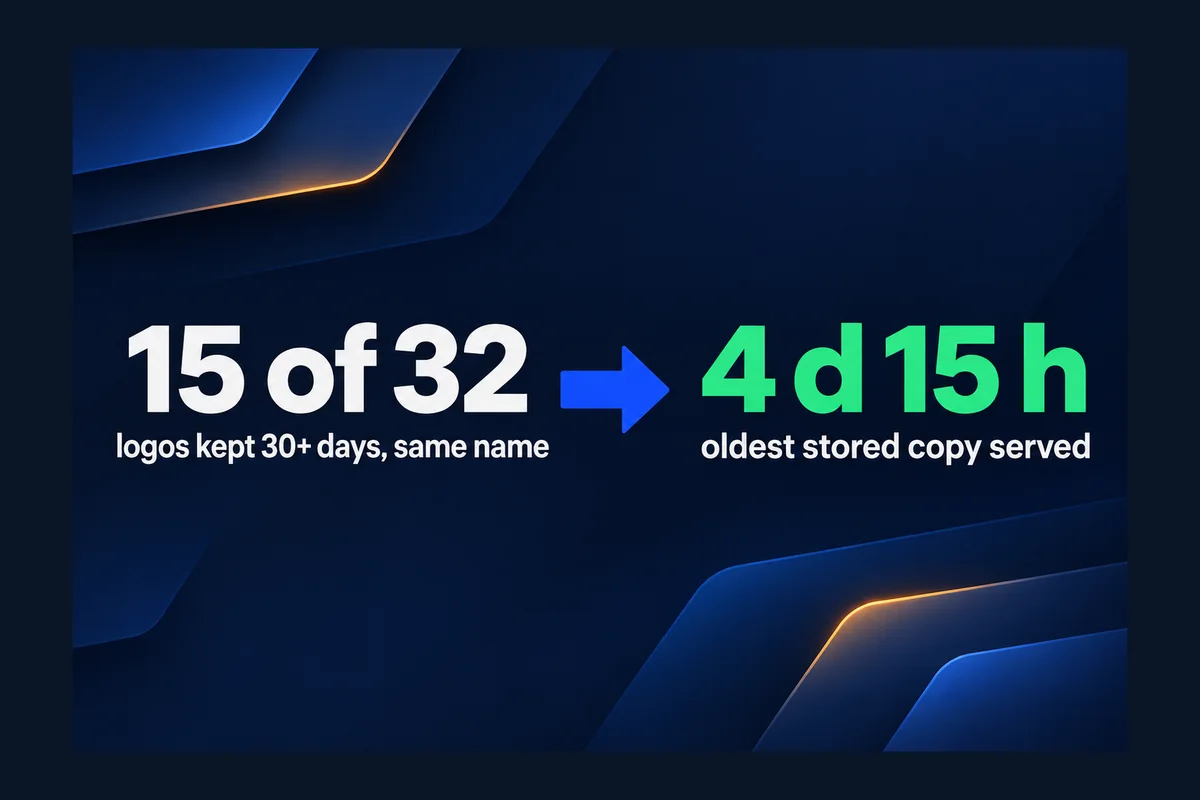
Because logos are usually replaced under the same file name, and logo files are the ones browsers are told to keep longest. 15 of the 32 logos I read are kept 30 days or more under an address with no version number in it. Two are kept for 3,650 days. Ten years, for a picture that changes when the business does.
<img src="/images/logo.png">
Cache-Control: max-age=31536000
Same address, kept a year. A returning visitor never asks for the new file.
<img src="/images/logo-2026.png">
Cache-Control: max-age=31536000
Same long keep time, but the address is new, so every browser downloads it once.
MDN calls this cache busting, and it's how big sites keep files for a year and still change them overnight. Only 2 of the 32 logo addresses carried a version. Stylesheets did better, 17 of 31, mostly because WordPress adds a ?ver= number to them by itself. Nobody adds one to the logo, because the logo was uploaded by a person in a hurry on launch day and never thought about again.
The same thinking applies to anything you replace: a menu PDF, a price list, a team photo. Upload it as a new file, point the page at the new name, delete the old one later. If your old logo still shows up when someone shares your link on Facebook or in a text, that's a different copy with its own refresh steps, covered in why your link preview shows the wrong image.
How to read the cache lines yourself
You can see which copy answered without asking anyone. In Chrome on a computer, open your page, press F12, choose the Network tab, reload, and click the first row (your page). Under Response Headers you'll find lines like these.
cache-control: max-age=600The browser may reuse this page for 600 seconds, 10 minutes, without asking again.age: 400574This answer came from a stored copy that is 400,574 seconds old. No Age line, or 0, means fresh from the site.cf-cache-status: HITCloudflare answered from its own copy. MISS means it fetched a new one. DYNAMIC means it doesn't store this page.x-litespeed-cache: hitThe LiteSpeed cache on the server answered. A WordPress site on a LiteSpeed host purges it from the LiteSpeed Cache plugin.If you see a HIT and a big Age number, check 2 was right: a server or network copy is the problem. To clear Cloudflare, Cloudflare's own help says to open Caching, then Configuration, and use Purge Cache. It warns that Purge Everything empties the whole site at once and suggests purging single addresses first, which is what I'd do for one changed page. For a WordPress caching plugin, the button is usually called Purge or Clear cache, and it's often in the black bar at the top of the admin.
One thing catches WordPress owners out. Most caching plugins don't serve the stored copy to a logged-in admin. So you, logged in, see the new page, and everyone else sees the old one. If your designer says "looks fine on my end", ask whether they were logged in.
What to send your host or designer
If the four checks point at the server and you can't purge it yourself, the person who can will want three facts. Copy this and fill in the blanks:
I changed [what] on [page address] at [time]. A private window and my phone on mobile data both still show the old version. With ?check=1 added to the address, the new version shows, so I think a page cache or Cloudflare is holding the old copy. Can you purge that page and tell me which cache it was, so I know for next time?
The last sentence matters. If they tell you it was the plugin, or Cloudflare, you'll know where the button is next time. If the whole site is down rather than stale, that's a different problem with a different order of calls, and I wrote it up in what to do when your website is down.
A note on moves: if you just pointed your domain at a new host, old pages can come from the old server for a few hours while the change spreads. That's DNS, not cache, and purging won't speed it up. It's the one time "clear your DNS cache" is real advice.
How I set this up on the sites I build
On this site, every page tells browsers to check back after 10 minutes, so a fixed price or phone number reaches returning visitors within the time it takes to make coffee. The stylesheet is kept for a year, and its address carries a version number, styles.css?v=11 as I write this. When I change the design, the number goes up and every browser fetches the new file on its next visit. Images I replace go up under a new name.
That's easy to keep tidy on a hand-coded site, because I write those lines myself, which is part of why I explain the trade-offs in custom-coded sites versus WordPress. On WordPress, the theme, the caching plugin and the host each have an opinion, and they don't always agree. Checking that after updates is part of my website support plan, and the plans are on the pricing page.
Questions owners ask me about old pages
How long does it take for website changes to show up?+
On a well set up site, from instantly to about 10 minutes for new visitors. Returning visitors can see an old file for as long as the site told their browser to keep it. On the 36 sites I read, that ranged from zero to a year for the home page, and up to ten years for a logo.
Why do I see my changes but my customers don't?+
Usually because you're logged in to the site and your caching plugin skips its stored copy for logged-in admins. Visitors get the stored copy. Open the page in a private window: if it's old there, purge the cache in the plugin or at your host.
Will clearing my own browser cache fix it for everyone?+
No. Your browser cache is on your computer only. It fixes what you see and nothing else. Copies on the server or Cloudflare have to be purged there, and copies in other people's browsers expire on their own schedule.
Google still shows my old text. Is that the same problem?+
No, that's Google's own copy of your page, and it updates when Google crawls the page again. Purging your cache won't change it. I explain how to speed that up in my guide to old pages still showing in Google.
Does purging the cache delete anything from my website?+
No. It removes stored copies, and the cache builds new ones from your current pages. The first few visits after a full purge can be a bit slower while that happens, which is why Cloudflare suggests purging single pages first.
The Google side of this has its own guide: old pages still showing in Google covers removals and recrawls.
Sources, read on 18 November 2026: MDN, HTTP caching; Cloudflare docs, Purge everything. Cache data: home page, first stylesheet and logo of 38 Ontario business sites requested on 18 November 2026, 36 read, response headers recorded. Nothing was logged into or changed, and the businesses aren't named.
Old page that won't go away?
Send me the page address and what you changed. I'll read its cache lines and tell you which copy is old and who can clear it.
Get My Free Quote
I build hand-coded websites for small businesses around the GTA and set how long every page and file may be kept before a site goes live. Read my full bio · Get in touch