The WordPress email with the subject "Your Site is Experiencing a Technical Issue" means one request to your website ended in a fatal error. It does not tell you the website is down. Sometimes every visitor is looking at an error page. Sometimes the only person who saw anything was me, poking around your dashboard at 11 pm. Three checks, about two minutes, tell you which night you're having.
I wrote this for the owner who received the email, not for the developer who will fix the cause. You don't need FTP for anything on this page. You need a browser and the email itself.
What does the WordPress technical issue email mean?
It means WordPress caught a fatal error, which is code that stopped halfway through building a page. Since version 5.2, WordPress catches these, shows a short error message in place of a blank screen, and emails the site's administrator a description and a private link for getting back into the dashboard.
The email is longer than it needs to be and opens with "Howdy!", which is a brave way to greet someone you are about to worry. Most of it is boilerplate. Five lines carry the information, and they are the same on every WordPress site because they come from the WordPress source code. Yours will have your own site name, plugin and file path in them.
Is my website down right now?
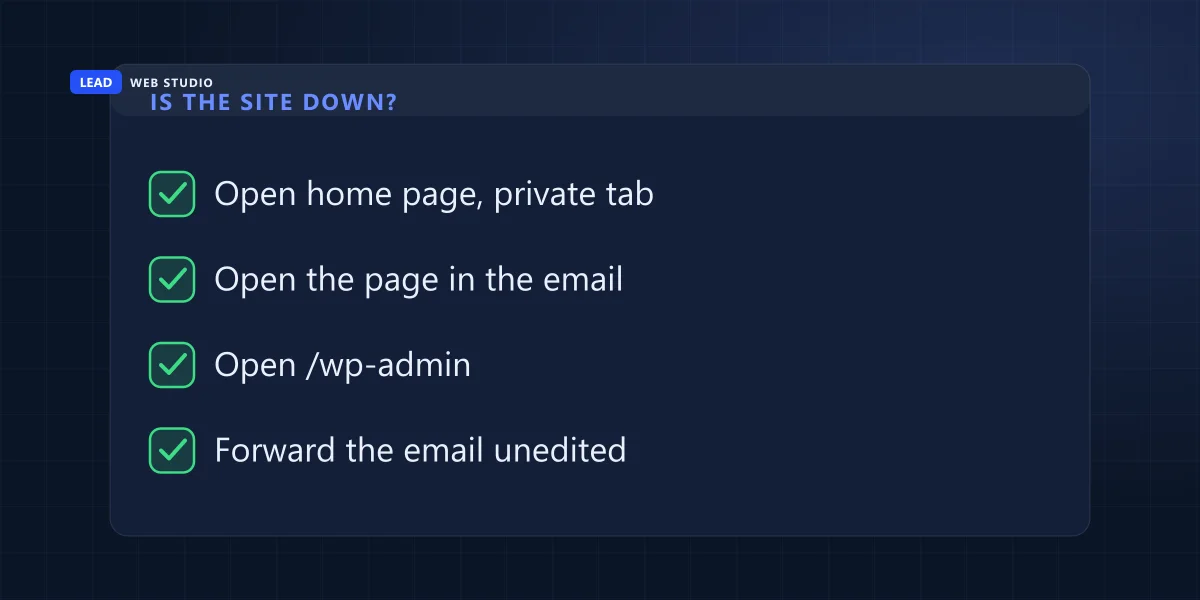
Open three addresses before you do anything else: your home page in a private browser window, the page named in the email, and your dashboard login. If all three load, customers are not seeing an error at this moment and the fix can wait for office hours. If the home page shows an error, it can't.
- Open a private or incognito window and load your home page. A private window matters because a browser that has visited the site before may show you a saved copy.
- Copy the address from the "page where the error was caught" line and open it in the same window. If it sends you to a login screen, the error happened in the dashboard.
- Go to your usual login address, the one ending in /wp-admin, and sign in the way you always do. Don't use the link in the email for this check.
The message to look for on a broken page is one sentence on a white background: "There has been a critical error on this website." On the login side it adds "Please check your site admin email inbox for instructions", which is WordPress pointing you back at the email you already have.
| What you see | What it means | How fast to act |
|---|---|---|
| All three load normally | One request failed. It may have been a dashboard screen, a scheduled task or a single page that has since recovered. | Forward the email in the morning and ask what failed. |
| Public pages load, the dashboard shows the error | Customers are fine. Nobody can edit the site or see new orders and form entries inside it. | Same day. |
| One public page shows the error, the rest load | The broken part is whatever that page uses and the others don't: a form, a booking tool, a shop page. | Today, sooner if that page takes money or bookings. |
| The home page shows the error | The website is down for everyone. | Now. Phone, don't email. |
If nothing loads at all, no error sentence, only a browser message that the site can't be reached, you have a different problem and the email is a coincidence. What to check when a website is down walks through that one in order.
Who gets this email, and how often?
One address gets it: the administration email saved under Settings, then General, in the dashboard, unless a developer set a separate recovery address in the site's configuration file. WordPress sends at most one of these emails a day by default, however many times the error repeats.
Two things follow from those numbers, and both have bitten owners I work with.
The address is often not yours. Whoever installed WordPress typed an email into the setup screen, and on a lot of small business sites that person was the designer. If that designer has moved on, the one warning WordPress sends goes to someone who no longer cares. Open Settings, then General, today and read what is in the Administration Email Address box. It takes less time than this paragraph did. My access checklist for staff and contractors lists the other places an old address hides.
One email is not one error. Because of the daily limit, a single message can stand for a single failed request or for a thousand. Silence afterwards doesn't mean it stopped. That is why the three checks above come before any opinion about how serious it is.
What does the recovery mode link do?
It lets you log in to a dashboard that would otherwise crash, by switching off the failing plugin or theme for your browser only. Visitors still get the broken version. The link gets you in so you can deactivate the plugin properly; clicking it does not repair the website for anyone else.
This is the part most guides get fuzzy on, so I went to the people who built it. The WordPress core team's announcement describes the link as placing a cookie in the browser of the person who clicked, and then says:
Pausing only happens for the client that is in recovery mode, and thus does not have any global implications.
Make WordPress Core, Fatal Error Recovery Mode in 5.2
So if you click the link, log in, see your dashboard working and close the laptop, your customers are exactly where they were. Inside recovery mode the Plugins screen marks the one that failed. Deactivating it there is what brings the public site back, minus whatever that plugin did. Then use the Exit Recovery Mode button in the top bar.
Should you do that yourself? If the plugin named in the email is something small and you know what it does, yes. If it is the plugin that runs your shop, your bookings or your forms, switching it off trades an error page for a site that quietly stops taking orders. Call whoever maintains the site first.
One safety check before any click. The real link goes to the login page of your own domain and contains the words enter_recovery_mode. Hover over it. A "technical issue" email whose link leads to some other domain is a fake, and the two-minute check for website scam emails covers the rest of that family.
What usually causes the error in the first place?
Something changed: a plugin or theme updated itself, the host moved the account to a newer PHP version, or someone opened a screen that hadn't been opened in years. WordPress's own troubleshooting page lists an incompatible PHP version, the memory limit and corrupted files among the causes of its critical error message.
Two cases from my own work show the range.
The harmless one was my fault. This month I was looking for a setting in the dashboard of a site I look after and opened the demo import screen of its old theme. That screen was written long before PHP 8 and fell over the moment it loaded. WordPress emailed the owner at 11:21 pm. The public site never showed an error. The owner asked me in the morning if it was serious, and I got to explain that the technical issue was me.
The expensive one started with a hosting change. In September an account was switched from PHP 7.4 to 8.3. The site everyone was thinking about had been tested and was fine. A second website on the same hosting account began failing two minutes after the switch, because of one old plugin that was active only there. By the time it was fixed the error log held 1,685 fatal errors. A PHP version is set for the whole hosting account, so every site on the account has to be checked, including the one nobody remembers.
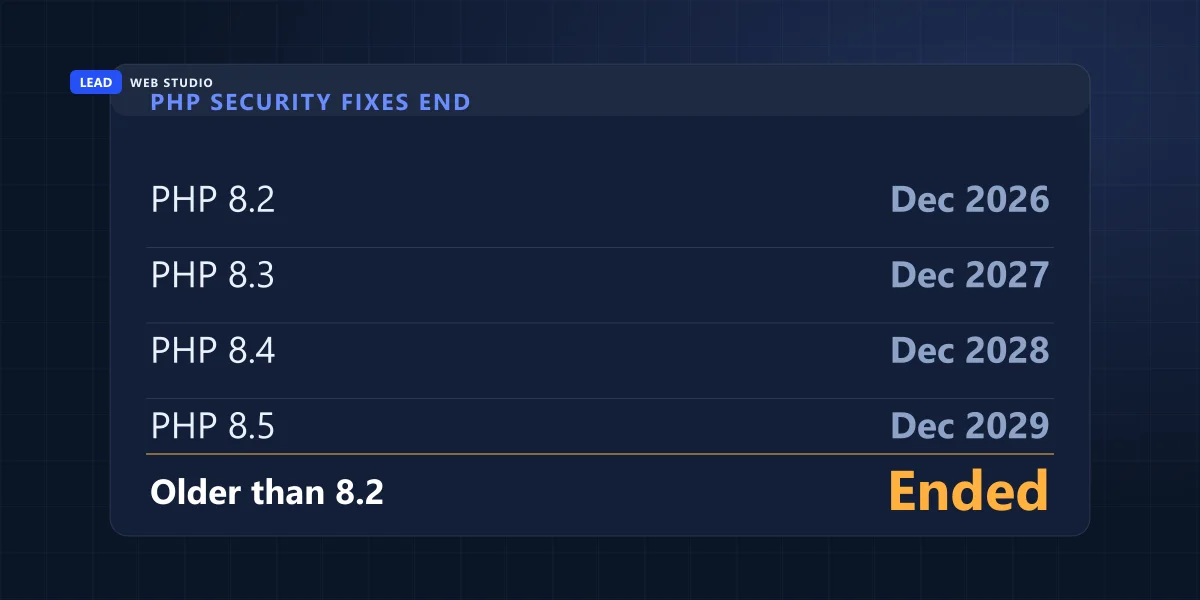
That second case is going to keep happening to people, and the reason is a calendar. PHP, the language WordPress runs on, retires its versions on fixed dates, and hosts move customers off retired versions sooner or later.
| PHP version | Status on 13 Oct 2026 | Security fixes end |
|---|---|---|
| 8.2 | Security fixes only | 31 Dec 2026 |
| 8.3 | Security fixes only | 31 Dec 2027 |
| 8.4 | Active support | 31 Dec 2028 |
| 8.5 | Active support | 31 Dec 2029 |
Anything older than 8.2 is no longer on that list. If your host's control panel says 7.4 or 8.0, a move is coming, and the plugins that haven't been updated in years are the ones that will send you this email the day it happens. Checking plugins against the new version before the switch, on every site on the account, is ordinary website maintenance work.
What do I send my developer or host?
Forward the whole email, unedited, to one person you trust, and add what your three checks showed and what changed on the site this week. That is everything a developer needs to start. Don't paste the email into a public forum or a group chat: it holds a working login link and the file paths of your server.
- The email itself, forwarded and not screenshotted, so the error details can be copied.
- What you saw on the home page, on the page named in the email and at the dashboard login.
- The time you checked.
- Anything that changed in the last few days: an update you clicked, a new plugin, a message from the host about maintenance or a PHP upgrade.
- Who else has admin access, so the developer can ask them what they were doing at that hour.
With that in hand the developer's steps are well documented. WordPress's page on common errors describes turning on the debug log and, when the dashboard can't be reached at all, renaming the plugins folder to switch every plugin off at once. Those are jobs for someone with a backup and server access. If you have neither a developer nor a reply from the last one, who to call when a web designer stops replying gives the order to try people in.
A fair question at this point is why a website needs a built-in feature for surviving its own plugins. Every plugin is code from a different author, updated on a different schedule, and this email is what it looks like when two of those schedules collide. A site without plugins doesn't send it. That trade is the subject of custom-coded versus WordPress, and for plenty of businesses WordPress is still the right side of it.
Questions owners ask me about this email
Is the WordPress technical issue email real or a scam?+
The real one comes from your own website, has your site's name in square brackets at the start of the subject, and its recovery link points at the login page of your own domain. Hover over the link before you click. If it leads to any other domain, delete the email.
How long is the WordPress recovery mode link valid?+
One day, unless a developer changed the default. The email says how long its own link lasts, and that a new link will be emailed if the error occurs again after the old one expires.
Why did I get the email only once if the error keeps happening?+
WordPress waits one day by default before it sends another recovery email. One email can stand for one failed request or for a thousand, so a quiet inbox does not mean the error stopped. Check the site itself.
Can I ignore the email if my website looks fine?+
Don't ignore it, and don't lose sleep over it either. If the home page, the page named in the email and the dashboard all load, forward the email to whoever maintains the site and ask what failed. A part of the site you didn't open may still be broken.
Does a website that isn't built on WordPress send this email?+
No. The email is a WordPress feature added in version 5.2. A hand-coded site has no plugins to fail in this way, but it also has nothing built in that emails you when a page breaks, so someone still has to watch it.
Sources, read on 13 October 2026: WordPress Developer Resources, WP_Recovery_Mode_Email_Service for the subject line, the wording of the email, the address it is sent to and the error details it lists; WordPress Developer Resources, WP_Recovery_Mode for the one-day limits on the email and the link; WordPress Developer Resources, WP_Recovery_Mode_Link_Service for the form of the recovery link; Make WordPress Core, Fatal Error Recovery Mode in 5.2 for how pausing works; WordPress, Common errors for the critical error message and its causes; php.net, Supported Versions for the PHP dates. The two cases are from sites I worked on in September and October 2026.
Got the email and nobody to forward it to?
Send it to me with what your three checks showed. I will tell you which plugin or theme it points at and whether it can wait until morning. Looking after WordPress sites month to month, updates and PHP changes included, is my maintenance and support service, and the plans are on the pricing page.
Get My Free Quote
10+ years building websites for GTA trades, clinics and service businesses, hand-coded and on WordPress, and keeping them running after launch. Read my full bio · Get in touch